Position and size
The Layout section of the properties panel sets where an element sits and how big it is.
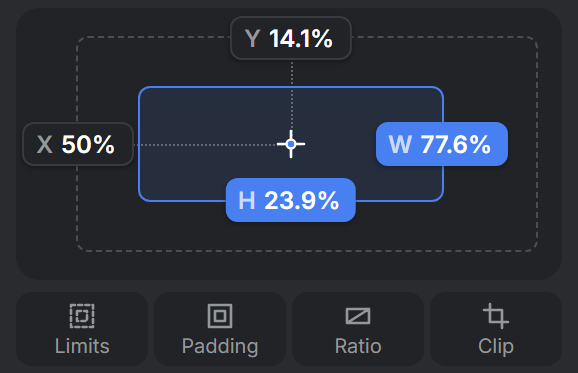
Dragging and resizing an element on the canvas does the same, and for a simple design, that is all you need. But a template is made to be filled in again and again. Next time the headline is longer, the photo has a different shape, or the same design is needed in portrait instead of landscape. The settings in this section decide what an element does then: whether it stays in its corner, which way it grows, and whether it keeps its size or follows its content.
Position
An element always sits inside something: the template itself, or a composition that groups it with other elements. That is its parent, and it is what the element's position is measured from. X is the distance from the parent's left edge, and Y the distance from its top edge.
Because of this, the elements of a composition stay together. Move the composition, and everything in it moves along.
X and Y do not point at a corner of the element but at its anchor, which is its center unless you change it. An X and Y of 50% therefore put the element exactly in the middle of its parent.
Anchor
The anchor matters as soon as an element changes size, because it is the point that stays where it is while the rest grows or shrinks around it.
Take a name that is shown next to a photo. With the anchor in its center, a longer name grows to both sides and runs into the photo. With the anchor on its left edge, the name starts in the same place every time and only grows to the right.
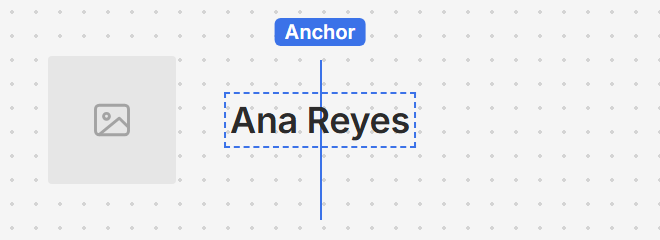
The anchor in the center
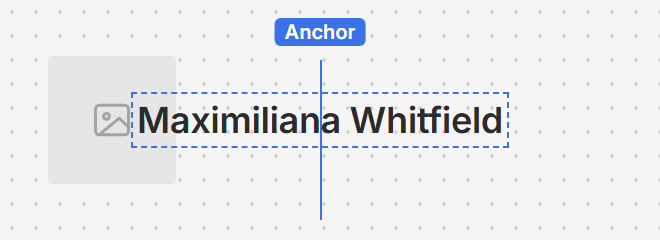
A longer name grows to both sides, into the photo
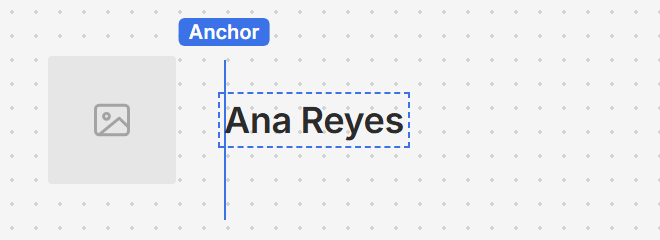
The anchor on the left
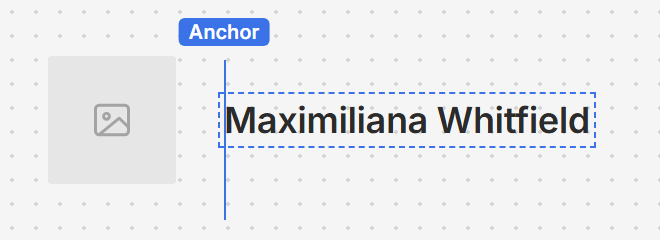
A longer name only grows to the right
To change the anchor, click the cross in the middle of the Layout section and choose a corner, an edge or the center. The element stays where it is; X and Y change to describe the new point. Scaling and rotating also happen around the anchor.
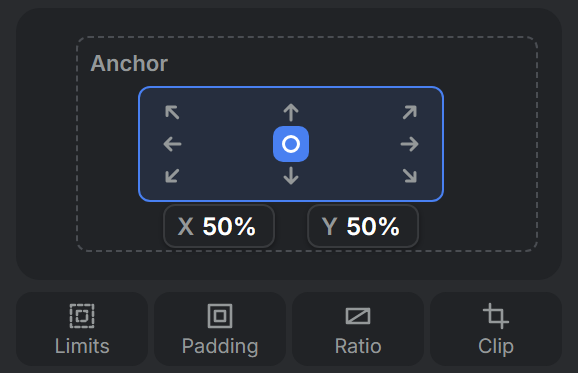
The two fields below the arrows take any point in between. Unlike the arrows, a value typed there does move the element.
Size
W and H are the width and height. For each of them you choose who decides: you, or the content.
- A number gives the element a fixed size, whatever is in it. That suits anything that has to cover a set area, such as a background or the space reserved for a photo.
- Hug makes the element exactly as big as its content. A text is as big as its words, a composition as big as the elements in its auto layout, and an image or video takes its own proportions.
Hug is the one to use for content you don't know yet. A label on Hug fits "New" as well as "Limited edition", where a fixed size would be too wide for one or too narrow for the other.
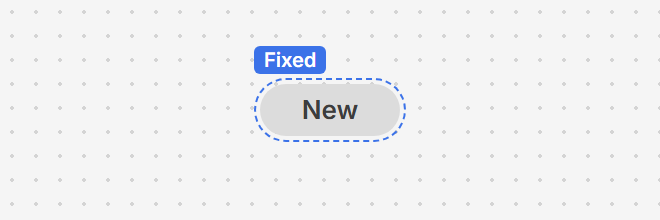
A fixed W leaves room around "New"
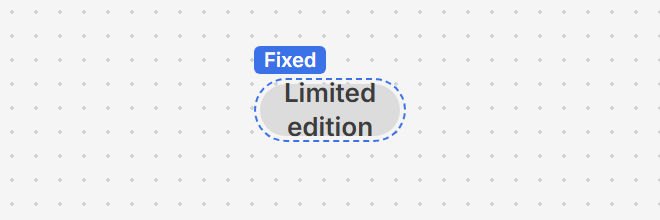
A fixed W is too narrow for "Limited edition"
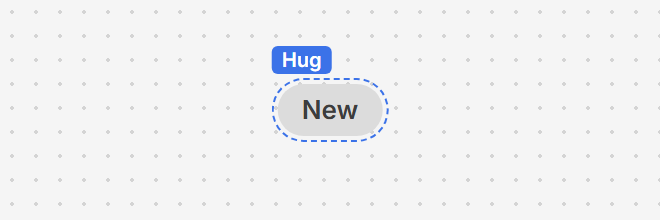
Hug fits "New"
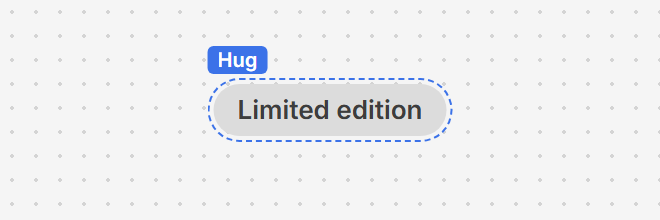
Hug fits "Limited edition" too
To switch, move the pointer over the Layout section and click the small arrow that appears next to W or H. Rectangles and ellipses only take a number. A shape drawn with the pen tool is as big as its path, so its W and H read Hug.
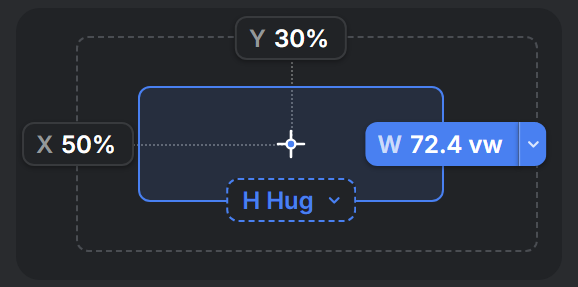
The arrow next to W
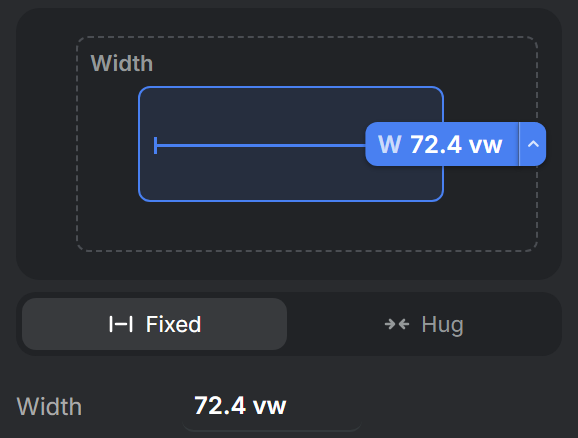
Choosing between Fixed and Hug
Text has more to choose from, because its font size can adapt too: see Text sizing.
Units
Every value is a number with a unit, and the unit decides what the number is measured against. That matters when sizes change. Resize a composition, or turn a landscape template into a portrait one, and a value in pixels stays as it was, while a relative value moves or scales along.
| Unit | Measured against | Use it for |
|---|---|---|
| % | The parent's width (for X and W) or height (for Y and H) | Anything that should follow its parent |
| vw, vh | 1% of the template's width, or of its height | Anything that should follow the template |
| vmin | 1% of the template's shorter side | Sizes that should look the same in landscape, square and portrait |
| vmax | 1% of the template's longer side | Rarely needed |
| px | One pixel of the template | Exact sizes that should not adapt |
As a rule of thumb, use % for positions and for sizes that should follow the parent, and vmin for sizes that should look the same in every format, such as a logo or the padding around a text. If you type a number without a unit, the field keeps the unit it had.
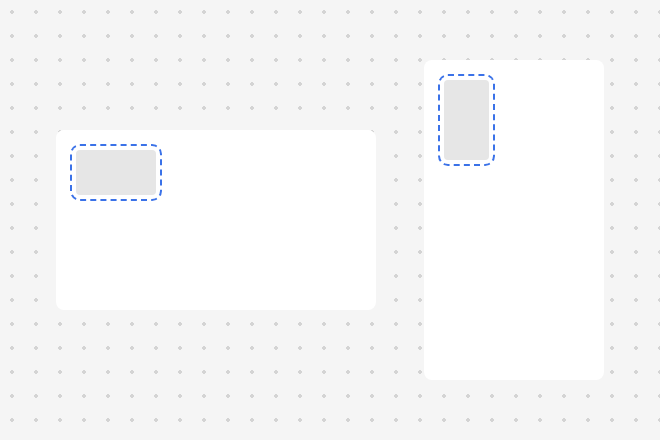
A logo in %, in landscape and portrait: it changes shape
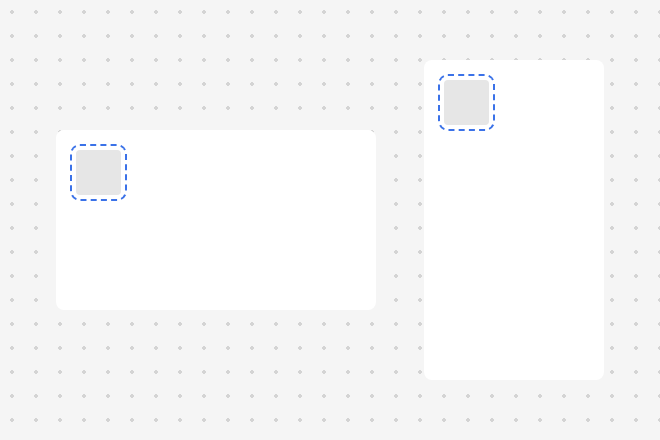
A logo in vmin: the same in both
Padding, Limits, Ratio and Clip
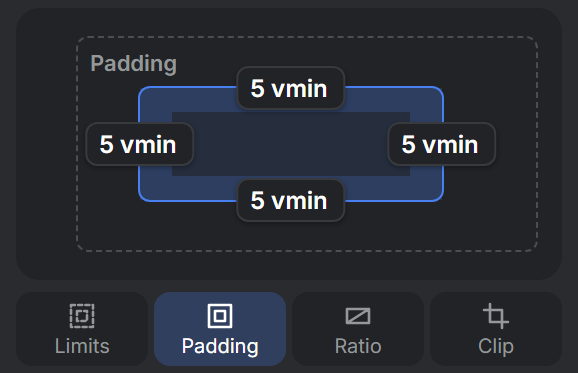
The four buttons at the bottom of the section add options for the cases that position and size alone don't cover. Each one is off until you switch it on, and switching it off again clears its values.
Padding keeps a distance between the edges of an element and what is inside it. A card is the typical case: a composition with a background color, and padding so that its text doesn't touch the edge. Switching Padding on shows a field for each side. To get back to those fields later, click the padding in the drawing.
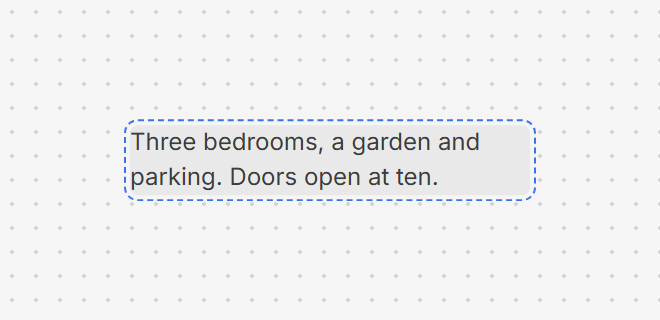
Without padding, the text touches the edge
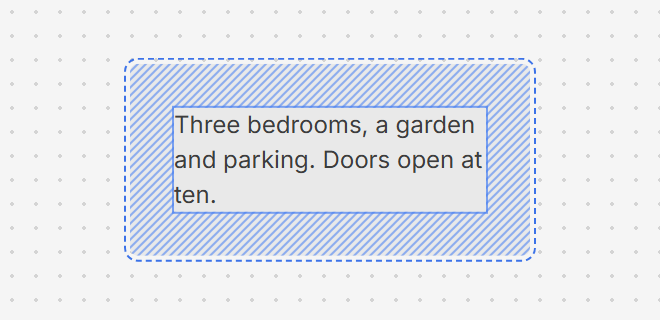
With padding, it keeps its distance
Limits set the smallest (≥) and largest (≤) size an element may take. They go with sizes that can change, such as Hug. A title on Hug with a largest W of 80 vw grows with its text until it reaches that width, and then continues on a second line instead of running out of the frame.
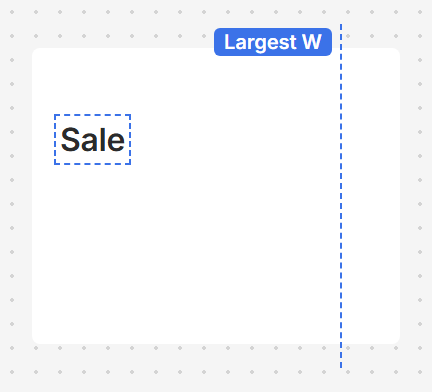
A short title hugs its text
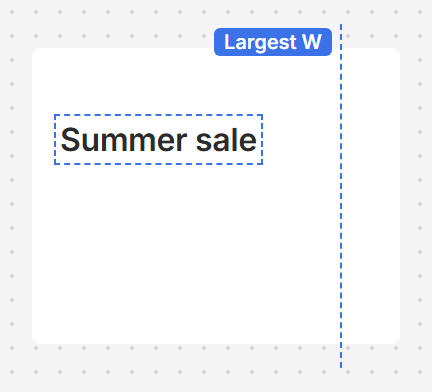
A longer title grows
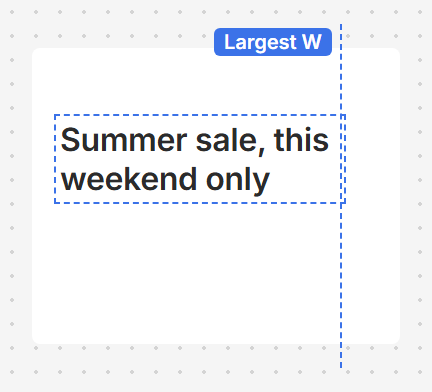
At its largest W, it continues on a second line
Ratio keeps an element in a fixed shape, such as 1:1 or 16:9, whatever the shape of the space it gets. The element becomes the largest box of that shape that fits in its W and H, and the Placement row that appears sets where in that space it sits. This is what keeps a photo square in a landscape template as well as a portrait one. Type the ratio as 16:9 or as a number. It needs a number for both W and H.
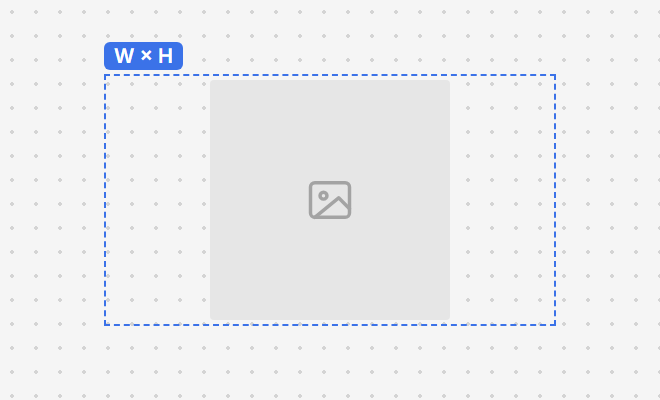
A ratio of 1:1 in a wide space
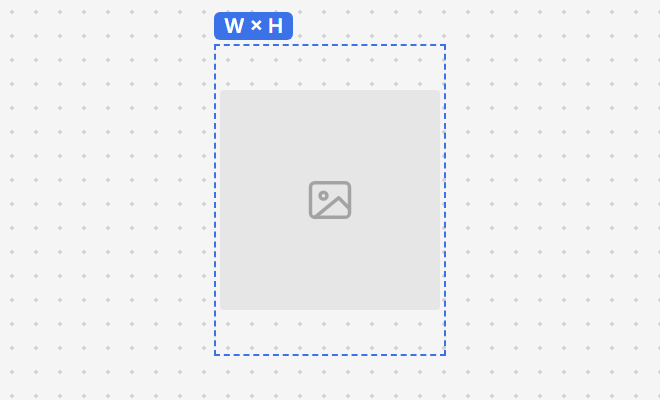
The same ratio in a tall space
Clip cuts off whatever sticks out of an element. Normally the elements of a composition are drawn in full, also where they stick out of it. With Clip on, the composition works like a window: a photo that slides in or zooms only shows inside it.
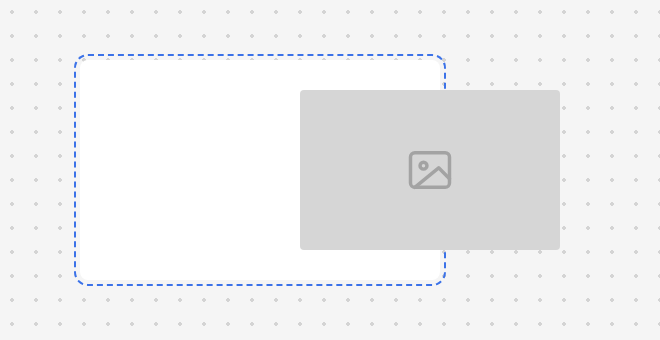
Without Clip, the photo is drawn in full
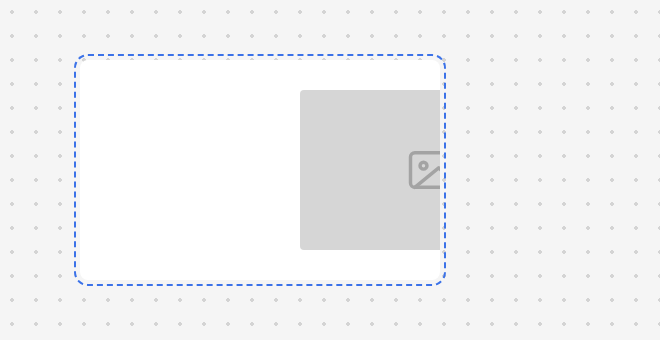
With Clip, only the part inside shows
Padding
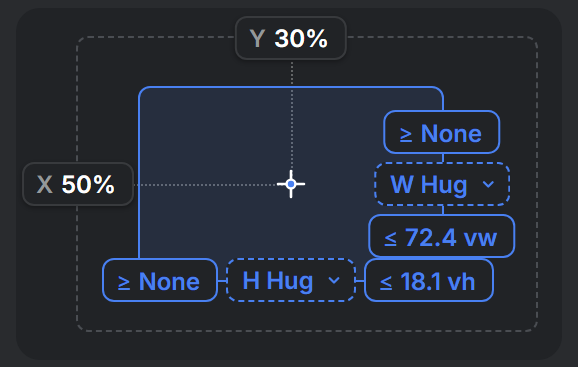
Limits
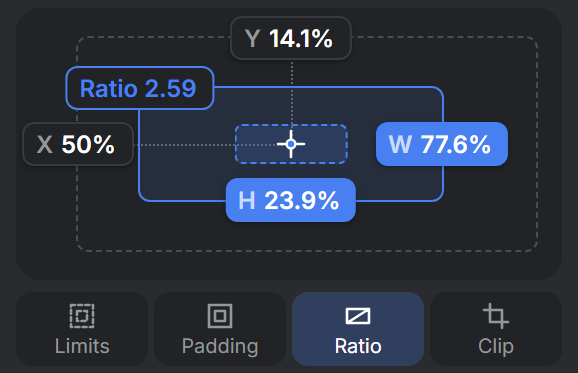
Ratio
Common setups
| To get this | Set this |
|---|---|
| An element in the middle of its parent | Anchor in the center, X 50%, Y 50% |
| A logo in the top right corner, whatever the format | Anchor top right, X 95%, Y 5%, W in vmin, H on Hug |
| A text that grows to the right as it gets longer | Anchor left, W on Hug |
| A title that wraps before it leaves the frame | W on Hug, and Limits with a largest W of 90 vw |
Elements that depend on each other
Everything above is about one element at a time. When elements depend on each other, such as a text that should push down the button below it, put them in an auto layout. The layout then places them, which shows in this section: X or Y reads Auto, and a size can also be set to Fill, which takes the space that is left.
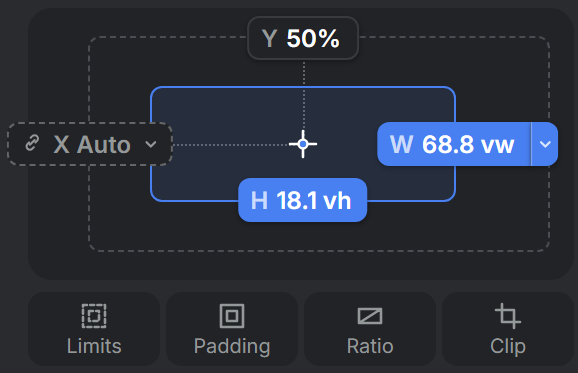
The template
The template has a layout of its own. With nothing selected, the Layout section shows its Size in pixels, which is the size of the video or image that gets rendered, and its Duration. A duration on Auto makes the template as long as what is in it; see Auto arrangement.
In RenderScript
Every value in this section is a property of the element: x, y, width, height, x_anchor, y_anchor and so on. Layout in RenderScript lists them.