Auto layout
In most templates, part of the content is only known when the video is made: a headline, a product name, a list of features. A longer text needs more room, and with fixed positions nothing makes that room. The headline simply runs into whatever is below it.
An auto layout solves this. It is a composition that arranges its elements for you, in a column or a row, one after another. When one of them gets bigger or smaller, the others move along, and the composition can grow with them.
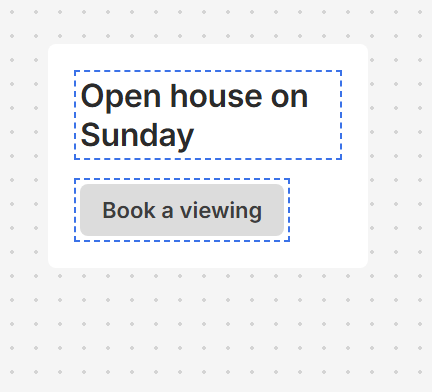
The design
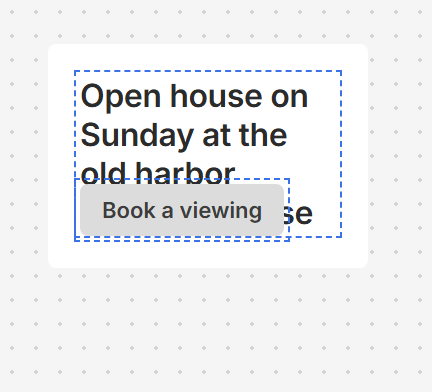
Fixed positions: a longer headline runs behind the button
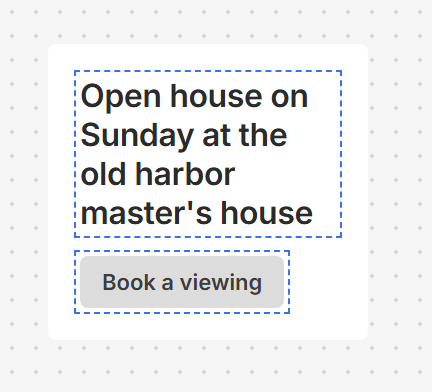
Auto layout: the button moves down and the card grows
Three things make up an auto layout, and the rest of this page goes through them:
- A composition with a direction: a column or a row.
- The elements in it, which the layout places one after another.
- For each element a size: fixed, following its content, or taking the space left.
Creating an auto layout
Select the elements that belong together and click Auto Layout in the toolbar above the canvas, or press Shift + A. They are grouped into a composition, and the layout is worked out from how they were arranged: elements above each other become a column, elements side by side become a row, and the distance between them becomes the gap. So everything stays where it was, but from now on the layout holds it together.
Texts are set to follow their content, so that a longer text takes more room and pushes the rest along.
If the elements are in a composition already, select that composition and click Auto Layout to arrange what is in it.
Direction and gap
To change how the elements are arranged, select the composition itself, not the elements in it. Its Auto layout section has two settings for this:
- Direction is a column, from top to bottom, or a row, from left to right.
- Gap is the distance between the elements. It is the same between all of them.
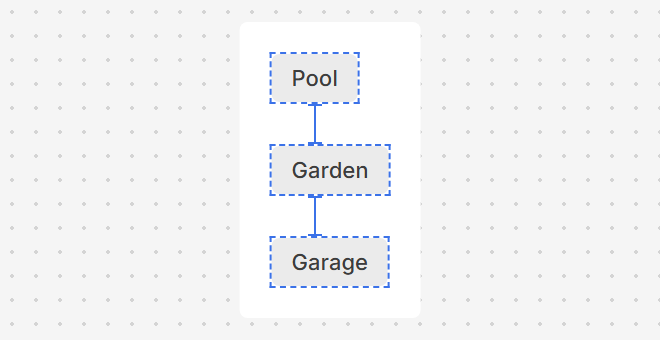
A column
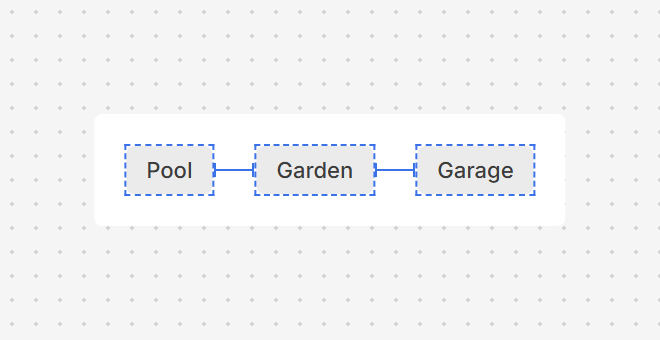
A row, with the same gap
The third setting there, Justify, depends on the size of the composition. It is explained further down.
The size of each element
In the direction of the layout, the size of each element is what decides how the layout responds. Select an element and click its W in a row, or its H in a column, to choose between three:
- Fixed keeps the number you set. It suits things that should never change, like an icon or a dividing line.
- Hug follows the content. This is what makes a layout respond: when a text gets longer, the element gets bigger, and the layout moves everything after it.
- Fill takes the space the other elements leave. It suits dividing space rather than following content: two columns of equal width, or a text that takes whatever room is left next to a photo.
The row below has one of each. When the title gets longer, the Hug element grows with it, the Fill element makes room, and the Fixed element stays as it is.
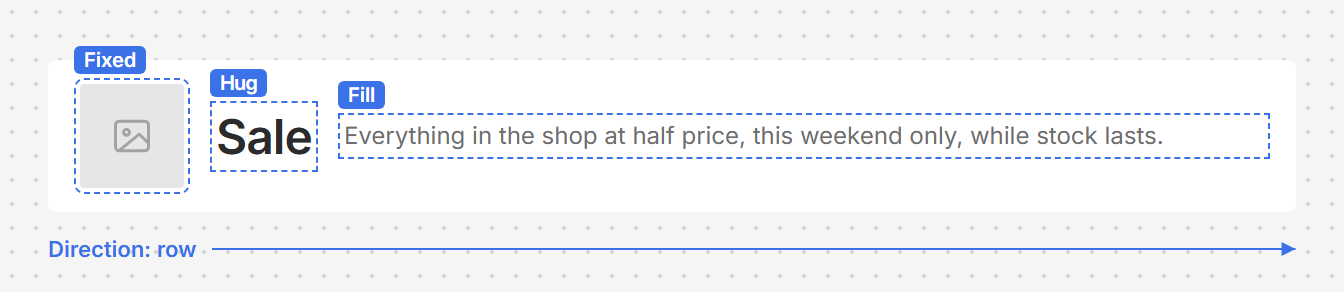
With a short title
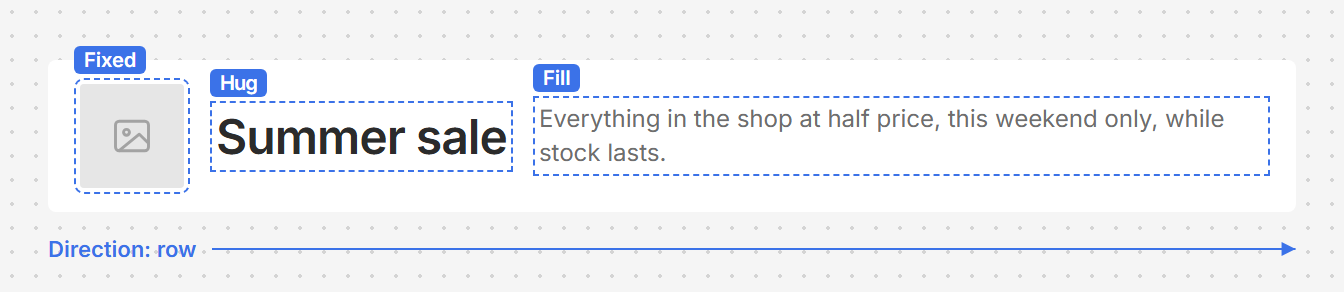
With a longer title
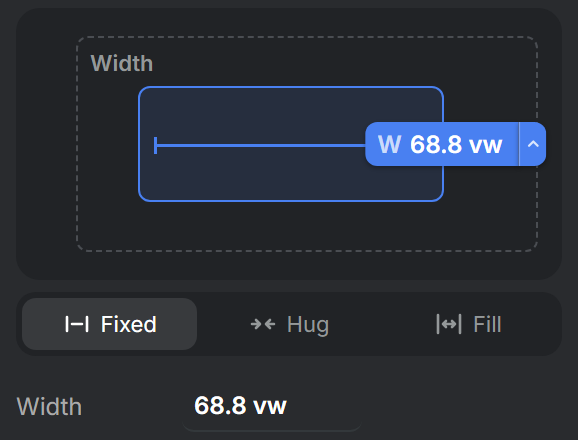
Fixed
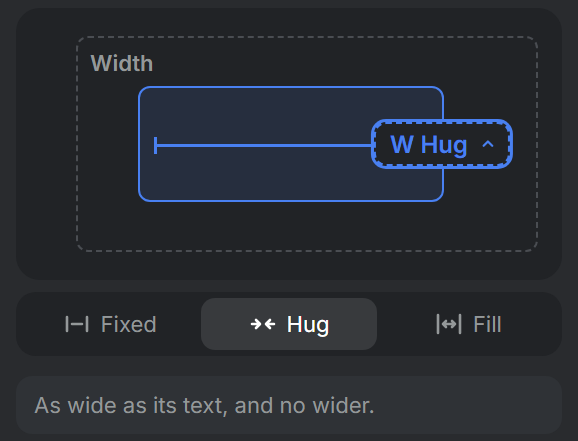
Hug
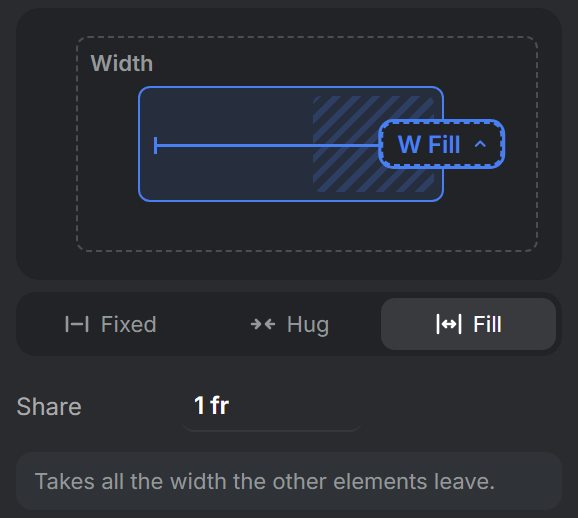
Fill
When several elements are set to Fill, they share the space, and Share sets how much each one gets: a share of 2 gets twice as much as a share of 1. With Limits you can keep a Hug or Fill size within bounds.

A share of 1 next to a share of 2
Across the direction there is no Fill. To make an element as wide as its column, or as tall as its row, set that size to 100%.
The size of the composition
The composition has a width and height of its own, and they decide what the layout can do.
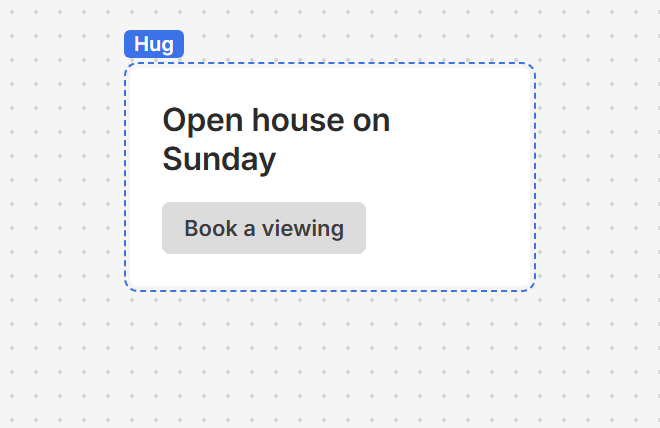
H on Hug: as tall as what is in it
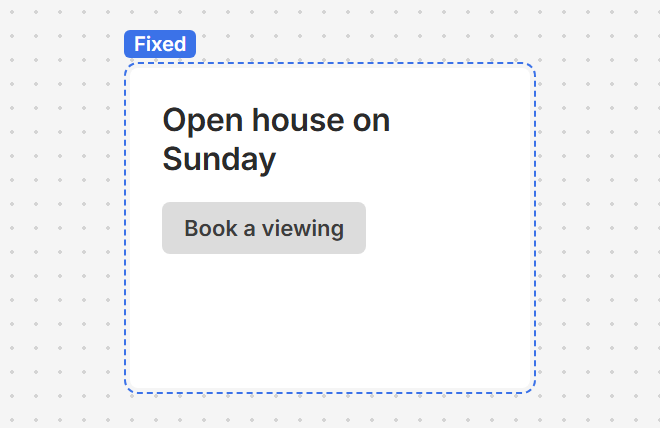
A fixed H: space is left over
Set to Hug, the composition is exactly as big as its elements and grows with them. The card in the picture above works this way: its H is on Hug, so a longer headline makes the whole card taller. An auto layout that you create starts out like this in its direction.
With a fixed size there can be space left over, and that makes two more things possible:
- Elements set to Fill have space to take. In a composition that hugs, there is none.
- Justify, in the composition's Auto layout section, sets where the elements go in the space that is left: at the start, in the center, at the end, or spread out with equal distances. When an element is set to Fill it takes that space, so Justify is not available then.
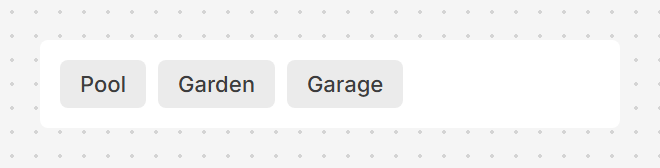
Start
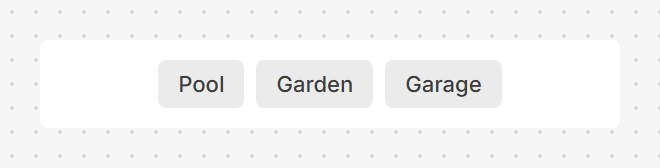
Center
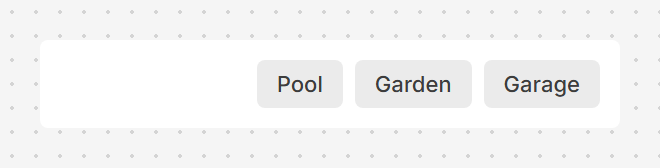
End
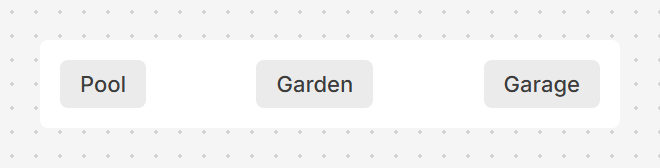
Space Between
Whatever its size, Padding on the composition keeps the elements away from its edges.
Where each element sits
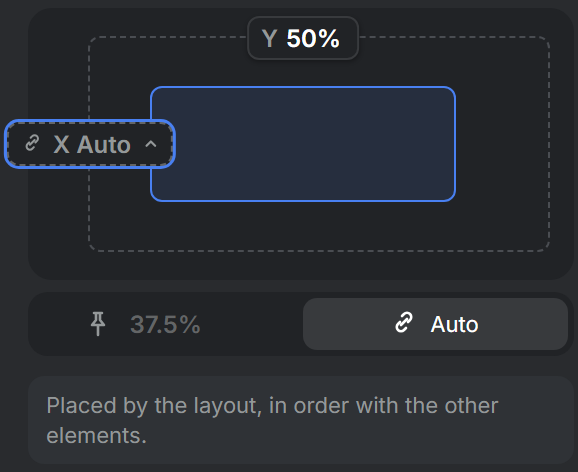
In the direction of the layout, the layout decides, so that X or Y reads Auto. The elements follow the order of their tracks in the timeline, starting from the bottom track. To change the order, move an element to another track.
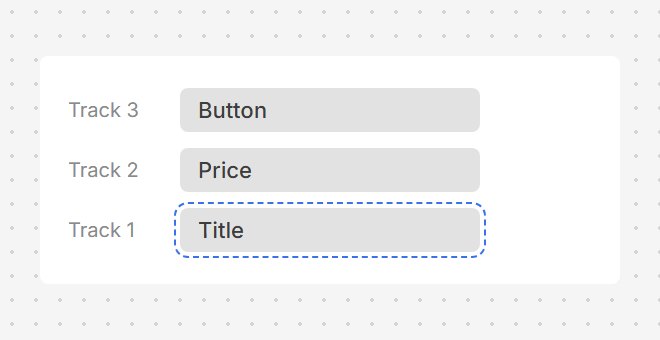
The timeline: the title is on the bottom track
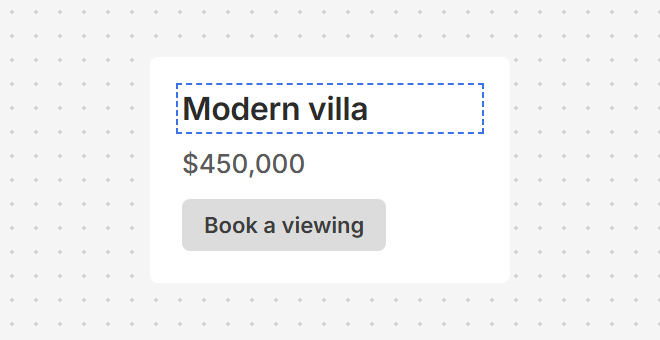
The column: the title comes first
Across the direction it is up to you. In a column, each element can sit left, centered or right: use the align buttons at the top of the properties panel, or set its X and anchor.
Keeping an element out of the layout
Not everything in the composition has to take part. A photo behind the text, or a badge on the corner of a card, should stay where you put it.
To take an element out, click the Auto of its X or Y and then the pin. It keeps its place, the layout skips it, and the other elements close the gap. The same choice puts it back.
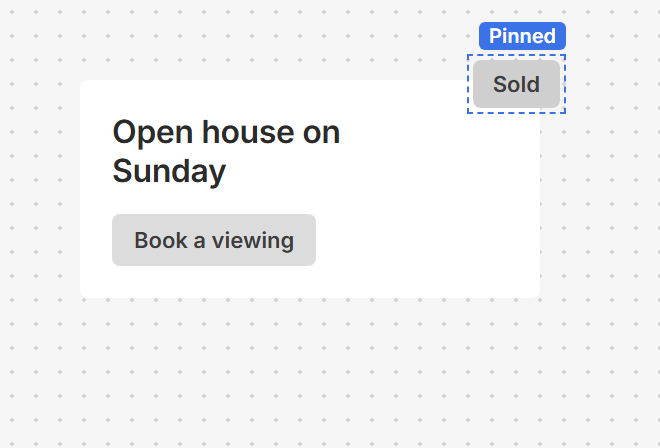
A badge pinned to the corner
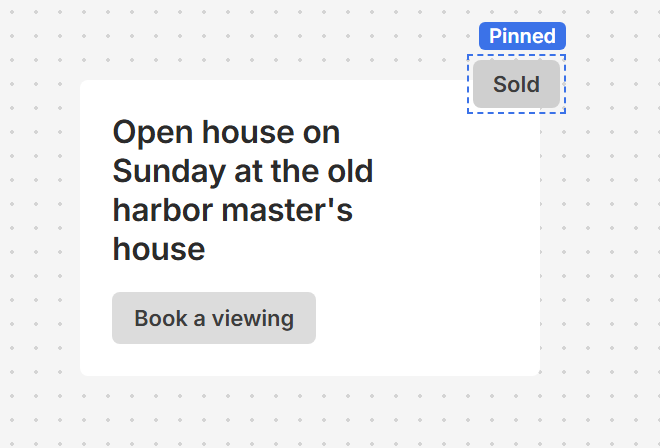
A longer headline moves the button, not the badge
Elements that appear and disappear
A video changes over time, and the layout follows. Only the elements that are on screen at that moment take up room. When an element starts later in the video, the others move to make room for it, and they move back when it ends. This is how the messages of a chat can stack up one by one.
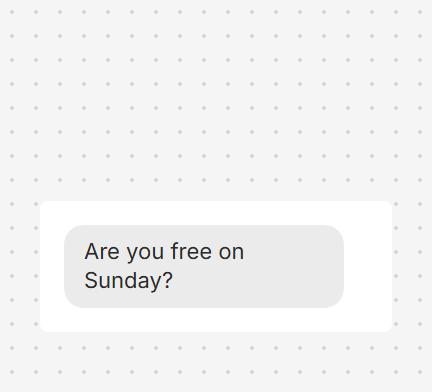
At 0 seconds
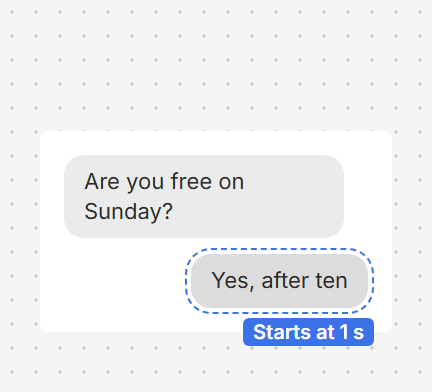
At 1 second, a new message pushes the first one up
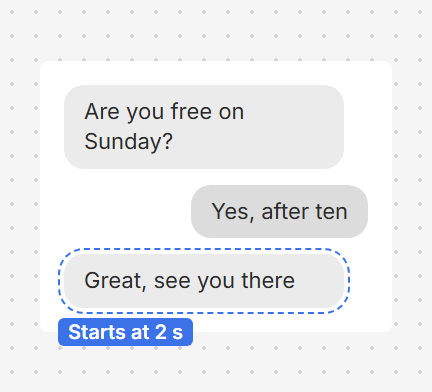
At 2 seconds, the next one does the same
If the others should stay still instead, let the element be there the whole time and animate its opacity from 0%. An element you can't see still takes its room.
Gap or padding
The gap is the same between all elements. When the distances should differ, give the elements their own padding instead. Some ready-made templates are built this way, which is why their Gap is 0.
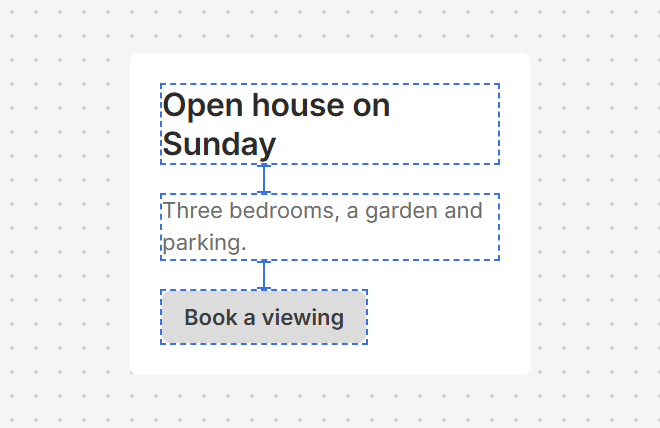
A gap: the same distance everywhere
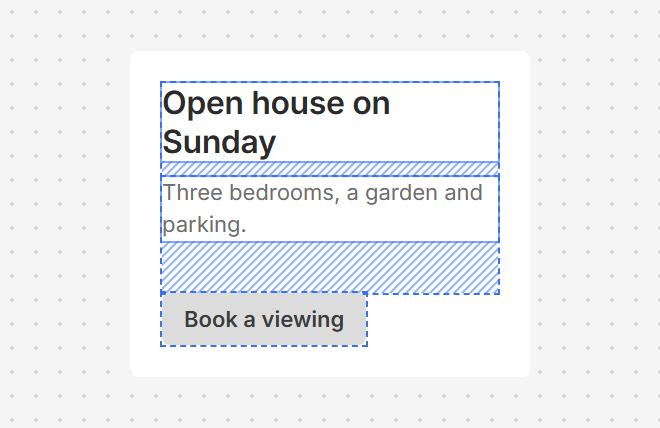
Padding: a distance for each element
Common setups
| To get this | Set this |
|---|---|
| A text that pushes down what is below it | Both in a column, with the text's H on Hug |
| A card that grows with its text | A column with its own H on Hug, Padding switched on, and a fill color |
| Columns of equal width | A row with a fixed W, and every element's W on Fill |
In RenderScript
In RenderScript, an auto layout is a composition with the flow_direction, flow_gap and flow_justify properties, and an element joins it when its x or y is null. See Layout in RenderScript.