Layout in RenderScript
Layout decides where each element sits and how big it is. Every element has a position and a size, and a composition can arrange its elements for you. The same ideas are explained with pictures in Position and size and Auto layout.
Position and size
Every element sits in a parent: the template, or a composition.
xandyplace the element's anchor in its parent, measured from the parent's left and top edges.x_anchorandy_anchorchoose the anchor, as a percentage of the element's own size.0%and0%is its top left corner.widthandheightset its size.
x, y, x_anchor and y_anchor all default to 50%, so an element is centered until you say otherwise. Shapes are the exception: their anchors default to null. A shape with a width and height then behaves as if they were 50%, and a shape sized by its path ignores them (see Shape properties). width and height default to 100%, except for text and shapes, where they default to null.
This example puts a label in the top right corner:
{
  "output_format": "jpg",
  "width": 1280,
  "height": 720,
  "elements": [
    {
      "type": "text",
      "text": "New",
      "x": "95%",
      "y": "5%",
      "x_anchor": "100%",
      "y_anchor": "0%",
      "font_size": "8 vmin",
      "fill_color": "#ffffff"
    }
  ]
}
Units and null
A number without a unit is in pixels. With a unit, it is measured against something:
%: the parent's width or height.vwandvh: 1% of the output's width or height.vminandvmax: 1% of the output's shorter or longer side.
A width or height of null makes the element as big as its content: a text as big as its words, a composition as big as the elements in its auto layout, and an image or video by its own proportions.
Auto layout
A composition can arrange its elements in a column or a row, one after another. In RenderScript these properties are named flow:
| Property | Set on | What it does |
|---|---|---|
flow_direction |
Composition | vertical (the default) or horizontal |
flow_gap |
Composition | The space between the elements |
flow_justify |
Composition | Where the elements sit when space is left over: start (the default), center, end or space-between |
x or y set to null |
Element | Joins the layout: y in a vertical one, x in a horizontal one |
width or height set to null |
Element | Hugs its content |
flow_stretch |
Element | Fills a share of the space that is left, such as 1 fr. The size in that direction must be null, and the composition needs a fixed size in it |
min_width, max_width, min_height, max_height |
Element | The smallest and largest size allowed |
null. Leaving it out is not the same: it then takes its default of 50%, and the element is placed by hand.Example
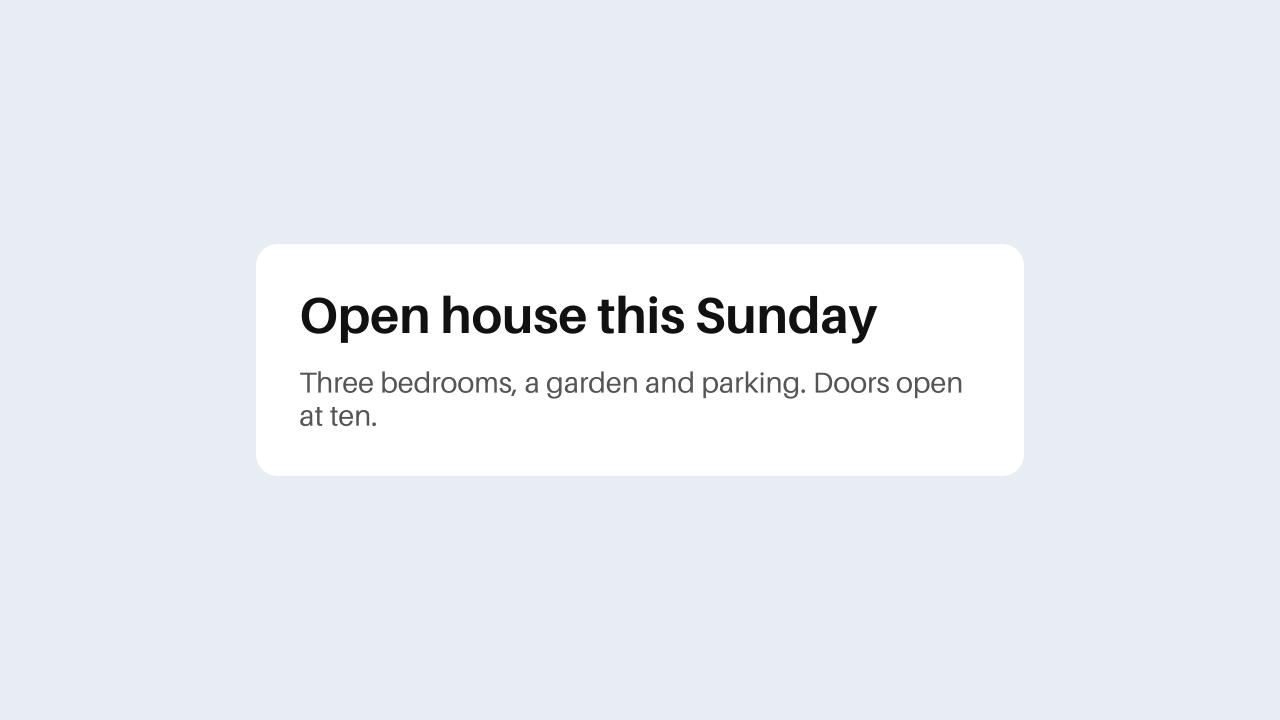
A card that grows with its text. The card's height is null, and both texts join its layout with a y of null:
{
  "output_format": "jpg",
  "width": 1280,
  "height": 720,
  "fill_color": "#e8ecf3",
  "elements": [
    {
      "type": "composition",
      "name": "Card",
      "width": "60%",
      "height": null,
      "x_padding": "6 vmin",
      "y_padding": "6 vmin",
      "fill_color": "#ffffff",
      "border_radius": "3 vmin",
      "flow_direction": "vertical",
      "flow_gap": "3 vmin",
      "elements": [
        {
          "type": "text",
          "name": "Title",
          "y": null,
          "width": "100%",
          "height": null,
          "text": "Open house this Sunday",
          "font_weight": "700",
          "font_size": "7 vmin",
          "fill_color": "#111111"
        },
        {
          "type": "text",
          "name": "Body",
          "y": null,
          "width": "100%",
          "height": null,
          "text": "Three bedrooms, a garden and parking. Doors open at ten.",
          "font_size": "4 vmin",
          "fill_color": "#555555"
        }
      ]
    }
  ]
}
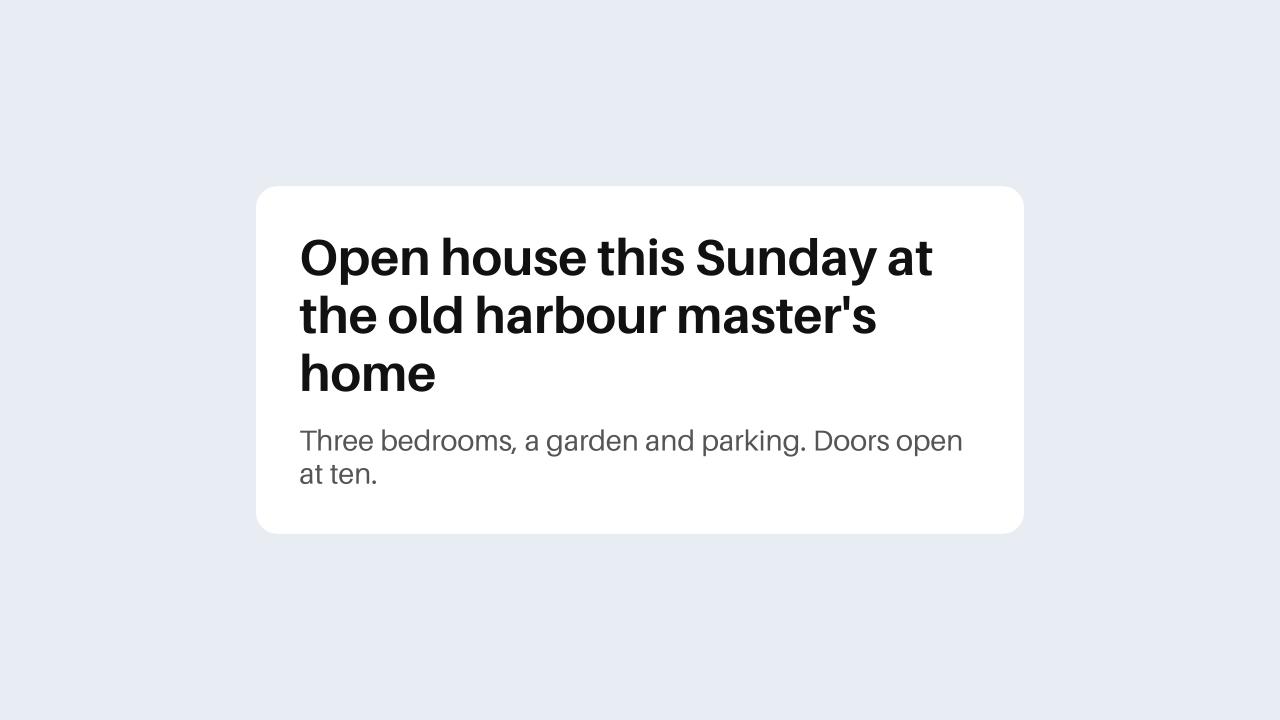
With a longer title, the same RenderScript gives a taller card, and the text below it moves down:
Good to know
- Elements are placed in the order of their
track, lowest first. Without atrack, that is the order they are written in. - In a composition that hugs, a
%size in that direction is a share of the space inside the composition, worked out together with everything else: an element of100 pxbeside one of50%makes the composition 200 px, and the second element 100 px. A%gap works the same way. Keep the shares under 100% in total. At 100% or more, each element fits its own content and a shape gets no size at all, which is also why an image or composition without a size fits its content there. Padding takes px,vmin,vworvh, never%. - Only elements that are visible at that moment take up room, so the layout changes as elements start and end. An element with an
opacityof0%still takes its room. - A keyframed
xorytakes the element out of the layout. To animate an element in, useanimations.
Compared with CSS flexbox
Auto layout follows the same model as CSS flexbox. If you know flexbox, this is how the two line up:
| RenderScript | Flexbox |
|---|---|
flow_direction |
flex-direction, with a column as the default |
flow_gap |
gap |
flow_justify |
justify-content |
flow_stretch of 1 fr |
flex: 1 1 0 |
A size of null |
A size that fits the content |
An x or y with a value |
position: absolute |
| The other coordinate and its anchor | align-self |
Two things work differently:
- Elements never wrap onto a next row or column.
- There is no
align-items. Each element is aligned on its own, through its other coordinate and its anchor.