Automate video in
Zapier, Make or n8n
Add Creatomate as a step in your workflow. Each time it runs, your template becomes a finished video or image.
Start with a design
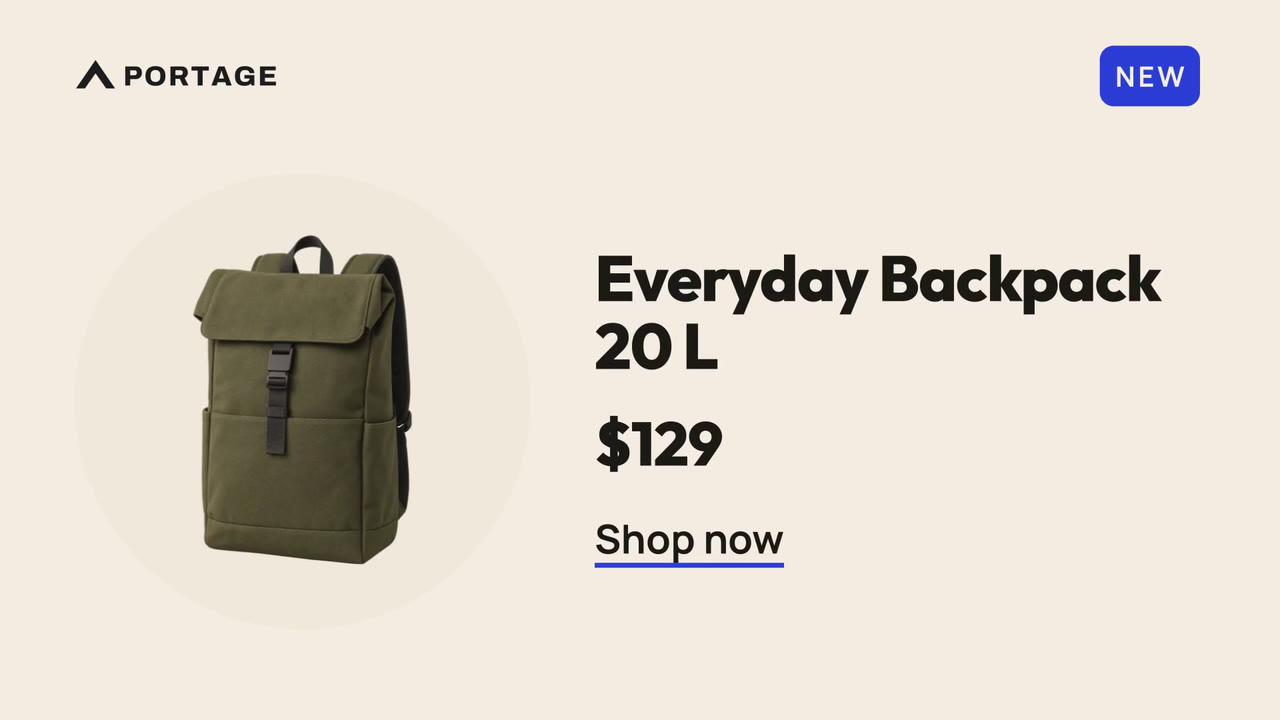
Make a video in the template editor, or pick a ready-made one. Then mark the parts that should change, like a product's name, photo and price.


Add it to your workflow
In Zapier, Make or n8n, Creatomate is a step like any other. Pick your template, and fill its fields from the step before it, like a new product in Shopify.
Videos make themselves
Every time the workflow runs, Creatomate makes a new video, and the next step posts it, saves it or sends it.
Works with the tool you already use
Creatomate has an official integration for each of them, and your template works the same in all three.
The easiest to start with. A Zap runs from top to bottom, and Zapier connects to the most apps.
Zapier tutorial →Shows a scenario as a map of steps. It can split into paths, or repeat a step for every item in a list.
Make tutorial →The most flexible, and the closest to programming. Add code where you need it, or run it on your own server.
n8n tutorial →What people automate
Something happens in one app, and a video goes out through another. Each of these starts from a ready-made template.

New event in Google Calendar → a post on LinkedIn.

New blog post → a voiced Short.

New sign-up in Typeform → a video by email.
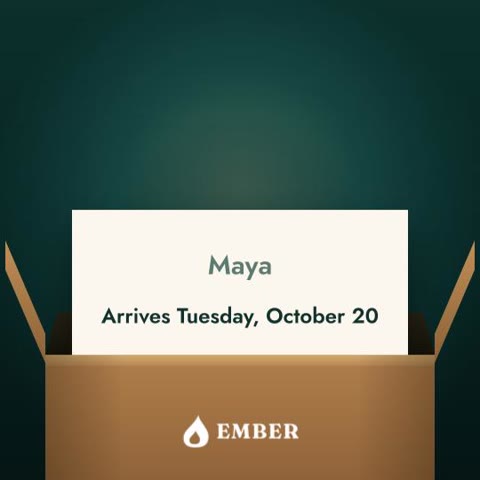
New order in Shopify → a personal update.

New figures in Google Sheets → a post in Slack.

New article → an Instagram story.
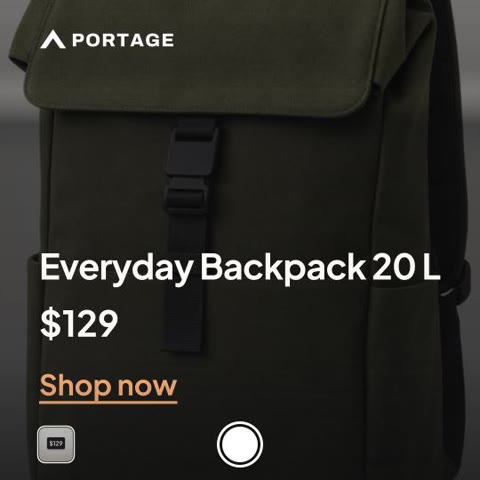
New product in Shopify → an Instagram post.
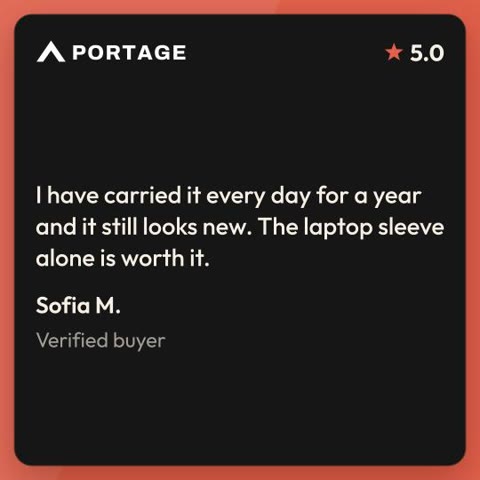
New five-star review → a post on Facebook.
Good to know
Do I need to code?
No. You pick your template in Zapier, Make or n8n, and fill its fields from the steps before it.
Which tool should I use?
The one your team already uses. Your template stays the same whichever tool fills it in.
What does it cost?
Each video uses credits from your Creatomate plan; your automation tool has its own plans. See pricing.
Where do the videos go?
Wherever the next step sends them: social media, a shared folder, an email, or your website.
What if my tool isn't listed?
Any platform that can send an HTTP request can use the API directly.
Where do I start?
Follow a step-by-step tutorial for your tool, from an empty workflow to the first video.
Ready to automate your first video?
Start for free →- Every feature included
- 50 free credits
- No credit card required