How to Create Real Estate Listing Videos using n8n

Learn how to automate real estate listing videos with n8n, Creatomate, and Google Sheets to turn property data into vertical social media videos.
Creating one property video manually is manageable. Creating them for every listing is a different job: the design often stays the same, while the photos, price, address, facts, and highlights change for every home. Automation lets you keep the video format consistent and generate a new version from the latest listing data once it is ready instead of rebuilding the edit each time.
By the end of this tutorial, you will have a workflow that creates a new video after you add a property's data to Google Sheets and mark its row as ready to create a video. It writes a link to the completed video back to that same row, so you can watch it, review it, and use it wherever you want. You can also extend the workflow with n8n later to store, approve, or publish the video automatically.
The video above is a short, vertical social media video for a single property listing. This tutorial shows you how to automate that format. The same workflow pattern can also automate other real estate video formats, including room-by-room tours, simple property cards, multi-listing roundups, Just Listed or Open House announcements, and photo-led property montages.
Creatomate's visual editor lets you tailor each format to your brand through its layout, colors, fonts, animation, media count, logo treatment, and closing CTA.
Prerequisites
- A Creatomate account. Create a free account if you do not have one yet.
- An n8n workspace.
- A Google account with access to Google Sheets.
Google Sheets keeps your listing data visible and easy to edit while you build the workflow. Step 2 includes a sample row, so you can follow along before you have property data of your own.
Once the workflow works, you can replace Google Sheets with the system where your listings already live, such as a CRM, property-management platform, database, or internal tool.
How to automate real estate videos with n8n
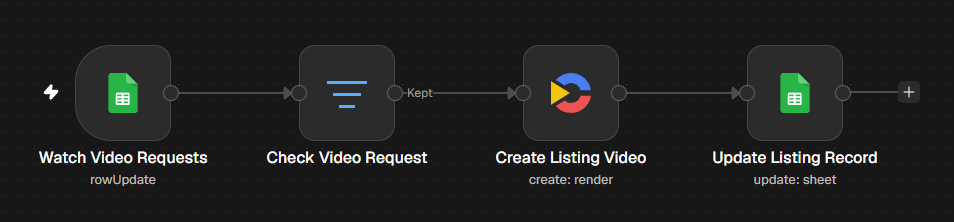
The workflow starts with a listing row in Google Sheets, where you can add and edit the property's photos, price, address, facts, and highlights before requesting a video. When the listing is ready, the Google Sheets Trigger detects that change and the Filter checks that the workflow should continue.
Creatomate then combines the listing data with a reusable video template to create the video. Finally, n8n writes the finished video URL back to the same Sheet row.
First, import the reusable template that will define the look and structure of every listing video.
1. Import the listing video template
To follow this tutorial exactly, start by importing our Listing story · Kinetic template. It is a short, vertical video designed to introduce one property with a hero image, price, key facts, three visual highlights, and a branded closing call to action (CTA).
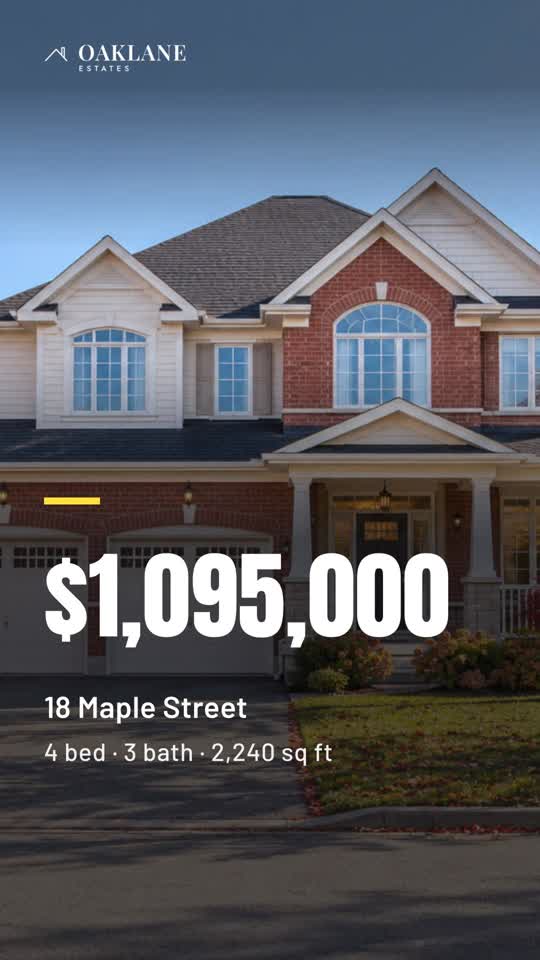
After importing it, the template opens as a copy in your Creatomate project. It is ready to use, so you do not need to build the video or configure its elements from scratch.
The parts of a template that should change from one video to the next are called dynamic elements. In this workflow, n8n replaces those elements with the property's photos, price, address, facts, and highlights, while the template's design stays the same.
In the screenshot below, the Price element is selected. Its Dynamic setting is enabled, which means n8n can replace the default value with the price from each listing:
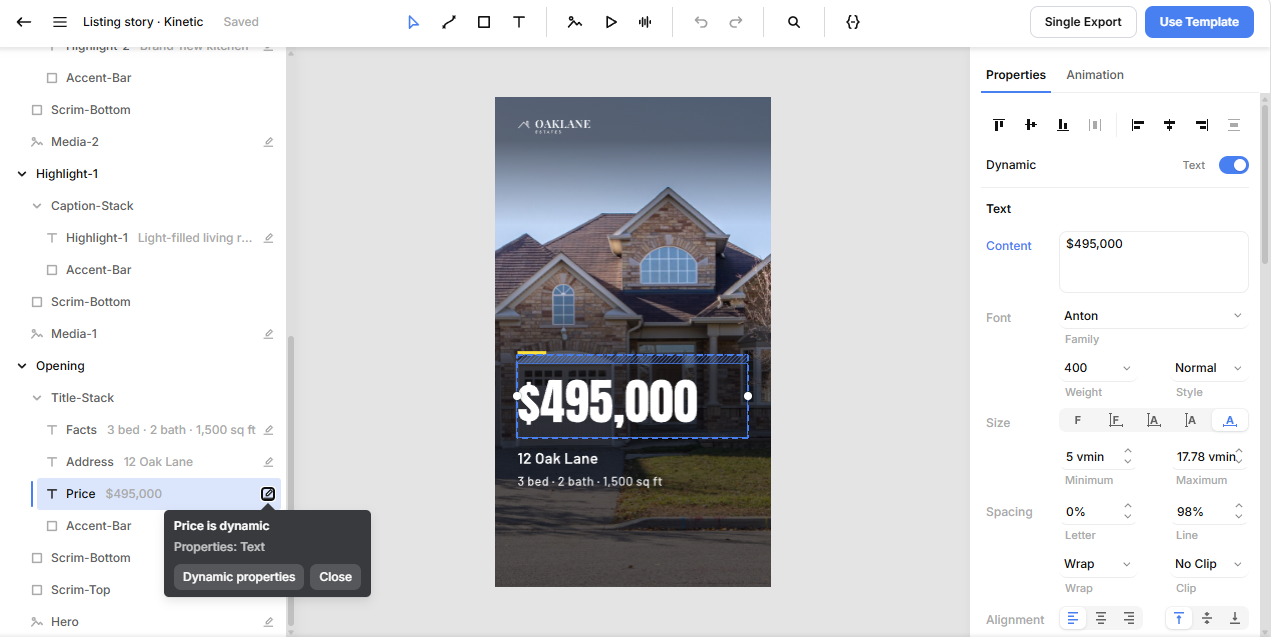
This tutorial maps the following dynamic elements:
- Hero: main property image
- Price: listing price
- Address: property address
- Facts: beds, baths, size, or other short facts
- Media-1, Media-2, Media-3: supporting property images
- Highlight-1, Highlight-2, Highlight-3: short captions for those images
In steps 2 and 5, each of these elements receives a matching Google Sheets column and n8n mapping.
The template also contains CTA, Contact-Name, Contact-Details, and Logo. We intentionally do not add them to the Google Sheet or the n8n mapping. Because n8n does not send a replacement value for those elements, every video keeps the default CTA, contact details, and logo set in the template.
Want to adjust the template itself? You can edit the copy at any time in Creatomate. For a closer look at scenes, timing, and animation, see the Template Editor documentation.
Want a different format or design?
In Creatomate, go to Templates and click New to open the template gallery. Choose the Real Estate category to explore other starting points for formats such as property tours, property cards, roundups, status announcements, and photo montages. When you select a template, you can configure the options it offers - for example its look, format, number of highlights, facts line, contact card, logo, and whether it uses photos or clips. Click Create Template when you are happy with those choices. Creatomate creates a copy in your project and opens it in the visual editor, where you can make further adjustments if needed.
If you choose a different template, its dynamic element names and number of visuals may differ from this tutorial. Adapt the Google Sheets columns and the mappings in step 5 to match the elements in your own template.
With the template ready, you can now set up the Google Sheet that will supply the listing-specific content for every video.
2. Add your listing data in Google Sheets
Create a new Google Sheet named Listing Videos. Use the default worksheet, Sheet1, for your listings. Each row in that worksheet represents one listing video. You can choose different names in your own workflow, but use these names while following this tutorial.
Create the columns
Add these columns to the first row of the worksheet:
listing_id- a unique, permanent ID for each property. n8n uses this value later to write the video URL back to the correct row.hero_image,price,address,facts,media_1,highlight_1,media_2,highlight_2,media_3, andhighlight_3- the property values that change from listing to listing.ready_to_create_video- enterYESonly when the row is complete and you want n8n to create the video.video_url- n8n adds the completed video link here.

Do not use the Sheet's row number for listing_id. A row number changes when someone inserts, deletes, or sorts rows; listing_id stays with the property.
The listing-value columns fill the dynamic elements from step 1. Their names do not need to exactly match the element names in Creatomate: for example, hero_image maps to Hero, while media_1 maps to Media-1. You will set up those mappings in step 5.
Use direct, publicly accessible image URLs for hero_image and the three media fields. A link to a page containing an image will not work; Creatomate needs the image file itself.
Add a test listing
To test the workflow before you use your own property data, enter these example values in the first row below your headers:
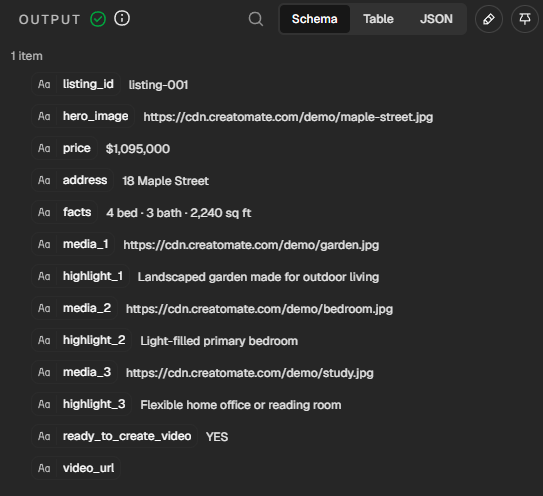
listing_id:listing-001hero_image:https://cdn.creatomate.com/demo/maple-street.jpgprice:$1,095,000address:18 Maple Streetfacts:4 bed · 3 bath · 2,240 sq ftmedia_1:https://cdn.creatomate.com/demo/garden.jpghighlight_1:Landscaped garden made for outdoor livingmedia_2:https://cdn.creatomate.com/demo/bedroom.jpghighlight_2:Light-filled primary bedroommedia_3:https://cdn.creatomate.com/demo/study.jpghighlight_3:Flexible home office or reading roomready_to_create_video:YES
Leave video_url empty and keep ready_to_create_video set to YES. In step 3, n8n will load this row as test data. You will use it to test each node while building the workflow, then clear the field before activating the finished workflow in step 7.

3. Set up the Google Sheets Trigger
Create a new n8n workflow. Click +, search for Google Sheets, and choose the On row updated trigger. Rename the node Watch Video Requests so the workflow stays easy to read when you add the remaining nodes.
Connect your Google Sheets credential, then select Listing Videos as the document and Sheet1 as the worksheet. Configure the node as follows:
- Set Poll Times to Every Minute
- Set Trigger On to Row Updated
- Set Include in Output to New Version
- Under Options, set Columns to Watch to
ready_to_create_video
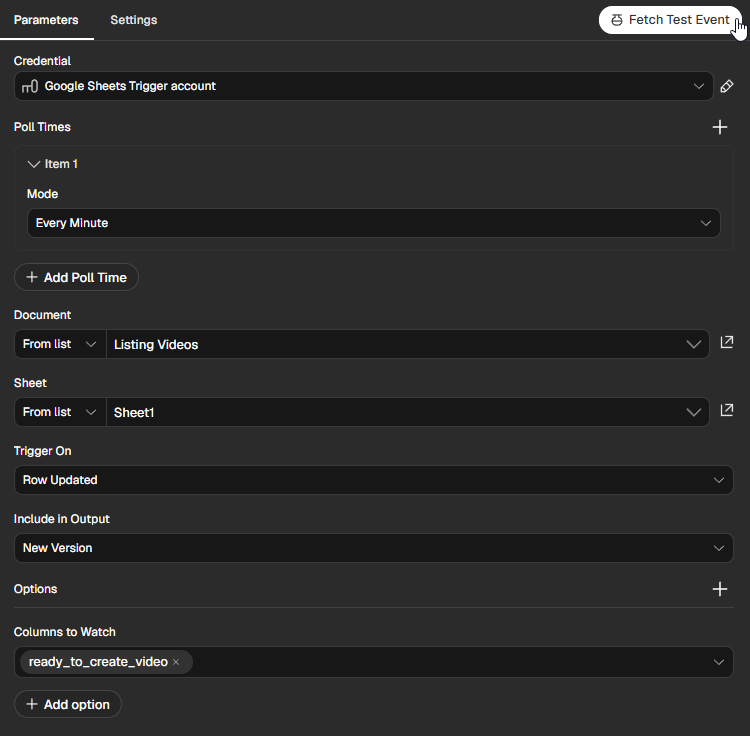
This means n8n only reacts when the video-request field changes. It does not react when you edit a price or description while preparing a listing. More importantly, it does not react when the final node later writes to video_url.
Adding a new listing with ready_to_create_video left blank does not start this Row Updated workflow. After n8n has registered the row, changing that field to YES creates the video request.
Click Fetch Test Event. n8n should load the Maple Street row, including ready_to_create_video: YES. This is only test input for the nodes you build next; it does not create a video while the workflow is inactive.
Note: Do not use Row Added or Updated for this workflow. A new row can be picked up more than once while it still contains YES, which can create duplicate videos. With Row Updated, a video is created only after a deliberate change to ready_to_create_video.
4. Add a Filter for video requests
The Google Sheets Trigger detects changes to ready_to_create_video. This filter decides whether that change is actually a request to create a video. Only rows with the exact value YES continue to Creatomate; all other values stop here. This gives you a deliberate approval step, so a video is created only when the listing is complete and you explicitly request it.
Click the + after Watch Video Requests and add a Filter node. Rename it Check Video Request.
Create one condition:
{{ $json.ready_to_create_video }} is equal to YES
Keep Convert types where required off. The value is text, and the check is intentionally exact.
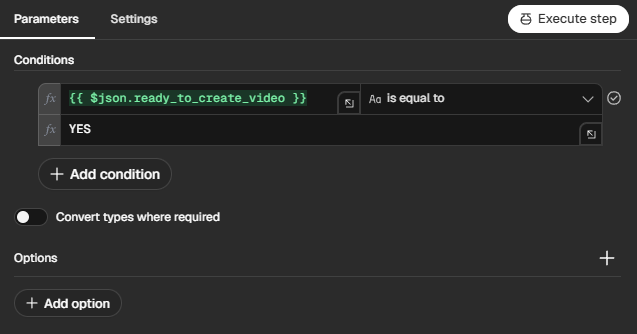
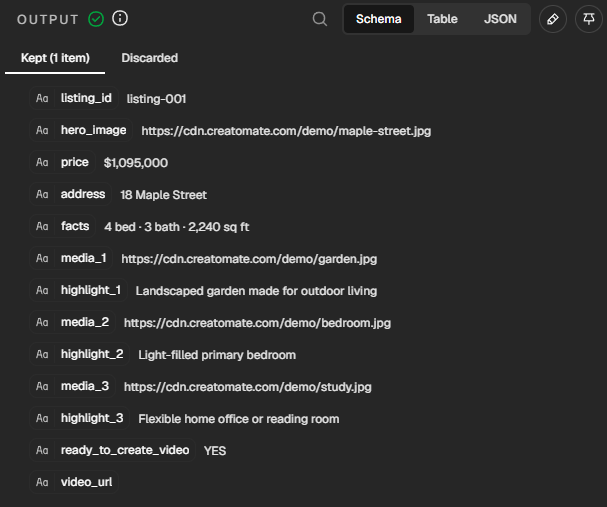
Click Execute step. Because the test row contains YES, it should appear under Kept and continue to the next node.
5. Create the listing video with Creatomate
Click the + after Check Video Request and search for Creatomate. If n8n asks you to install the node, click Install node. Then select Create a render and rename the node Create Listing Video.
Connect your Creatomate account
Under Credential, click Connect to Creatomate.
In Creatomate, click your project name in the top-left corner and open Project Settings. Open the API section and copy the API key for the project that contains your Listing story template:
Return to n8n, paste the key into the credential, and click Save.
Map the listing data
Then select your imported Listing story · Kinetic template from the Template list.
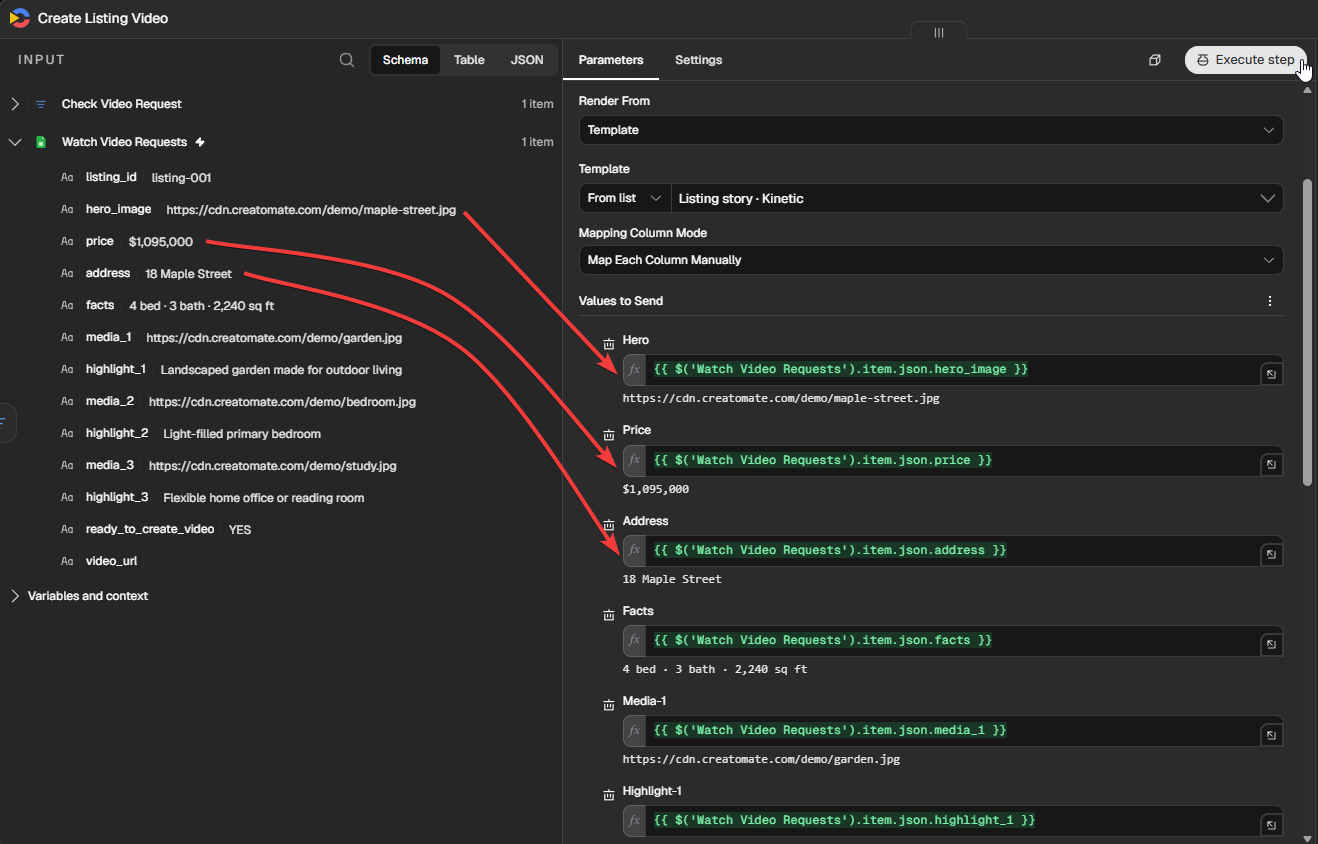
Set Mapping Column Mode to Map Each Column Manually. Under Values to Send, add these mappings:
- Hero:
{{ $('Watch Video Requests').item.json.hero_image }} - Price:
{{ $('Watch Video Requests').item.json.price }} - Address:
{{ $('Watch Video Requests').item.json.address }} - Facts:
{{ $('Watch Video Requests').item.json.facts }} - Media-1:
{{ $('Watch Video Requests').item.json.media_1 }} - Highlight-1:
{{ $('Watch Video Requests').item.json.highlight_1 }} - Media-2:
{{ $('Watch Video Requests').item.json.media_2 }} - Highlight-2:
{{ $('Watch Video Requests').item.json.highlight_2 }} - Media-3:
{{ $('Watch Video Requests').item.json.media_3 }} - Highlight-3:
{{ $('Watch Video Requests').item.json.highlight_3 }}
Drag each field from Watch Video Requests in the input panel into its matching Creatomate field, or paste the expressions above. The preview below each field should show the value from your Google Sheet, rather than the expression as plain text.
Do not add CTA, Contact-Name, Contact-Details, or Logo to Values to Send. Because n8n does not replace them, every video keeps the defaults configured in the template.
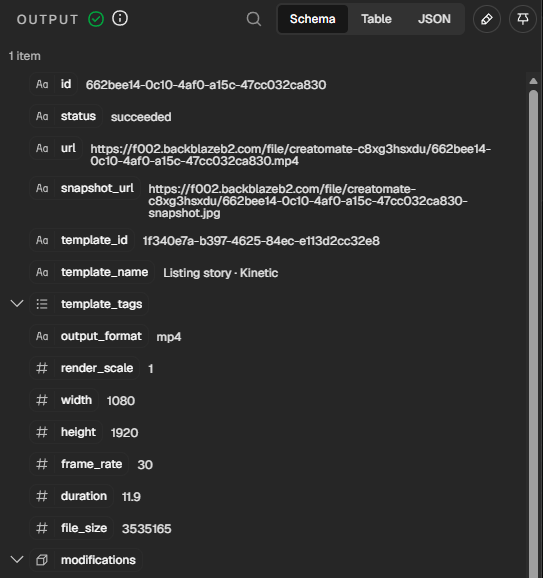
Click Execute step to create a real test render. When it succeeds, the output includes a url for the completed MP4, which you will write back to Google Sheets in the next step.
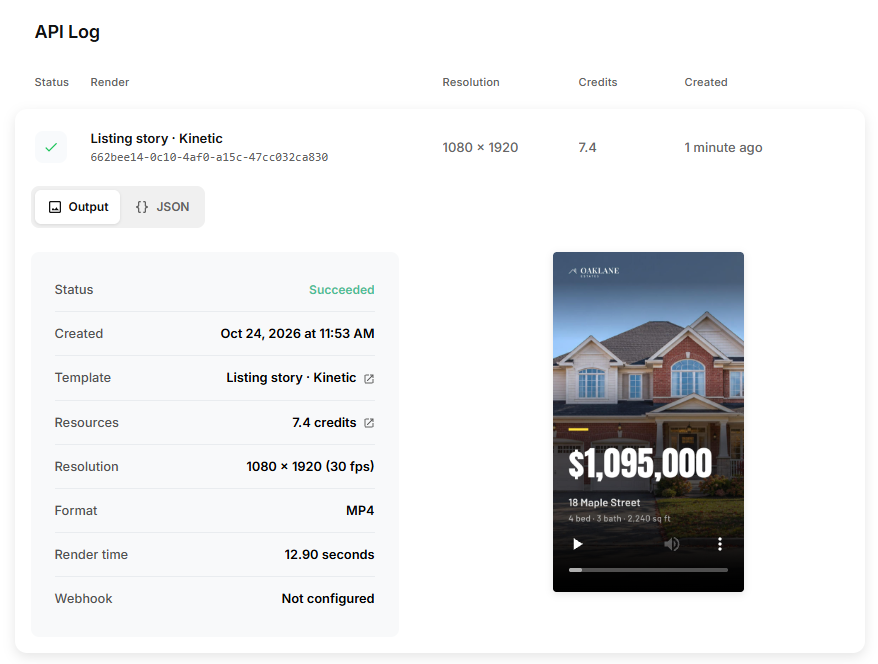
Creatomate also records the request in the API Log, where you can inspect the render status and view the finished video. If a render fails, the log shows the error details and suggested fixes.
6. Update the original Sheet row with the video URL
Click the + after Create Listing Video, search for Google Sheets, and select Update row in sheet. Rename the node Update Listing Record.
Select the same Google Sheets credential, document, and worksheet as before.
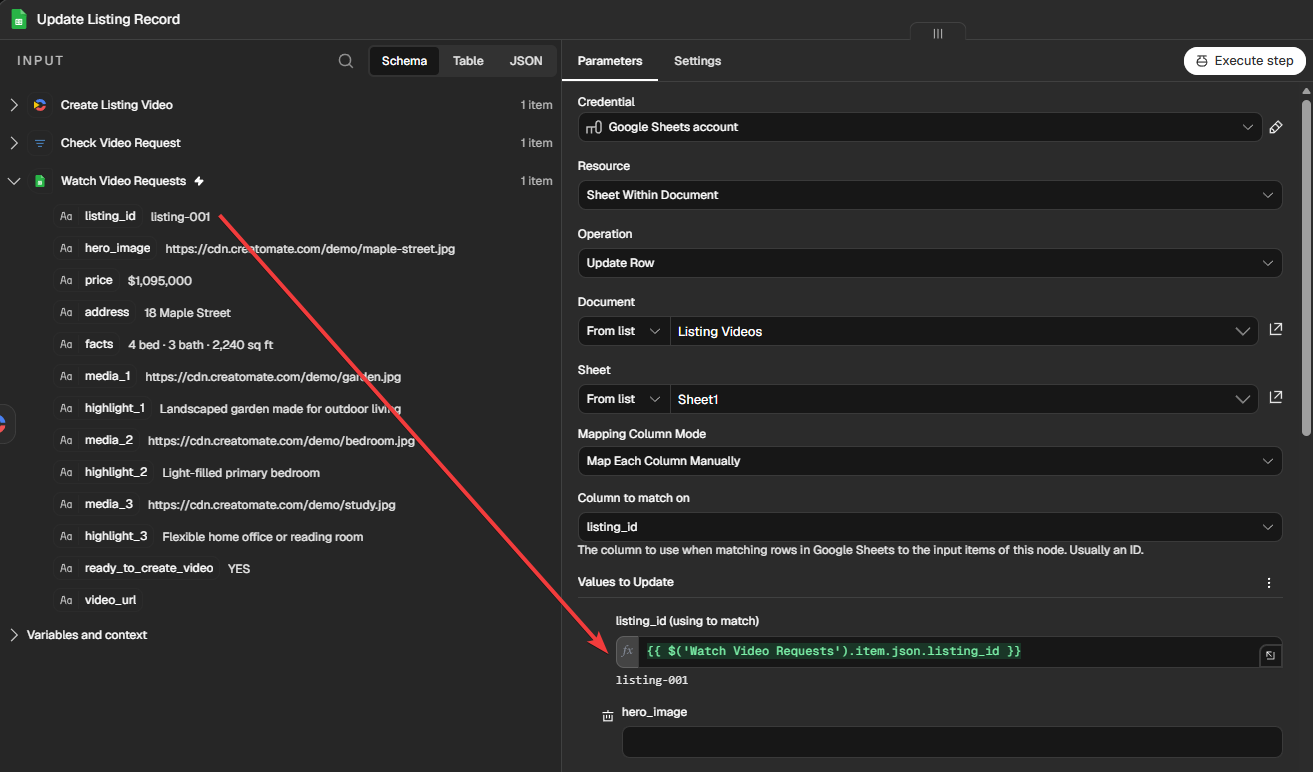
First, tell n8n which row to update. Set Column to match on to listing_id. In listing_id (using to match), enter:
{{ $('Watch Video Requests').item.json.listing_id }}
Next, scroll to Values to Update and set video_url to:
{{ $json.url }}
This is the completed video URL returned by Create Listing Video. Leave the other Sheet fields unmapped so this node updates only video_url.
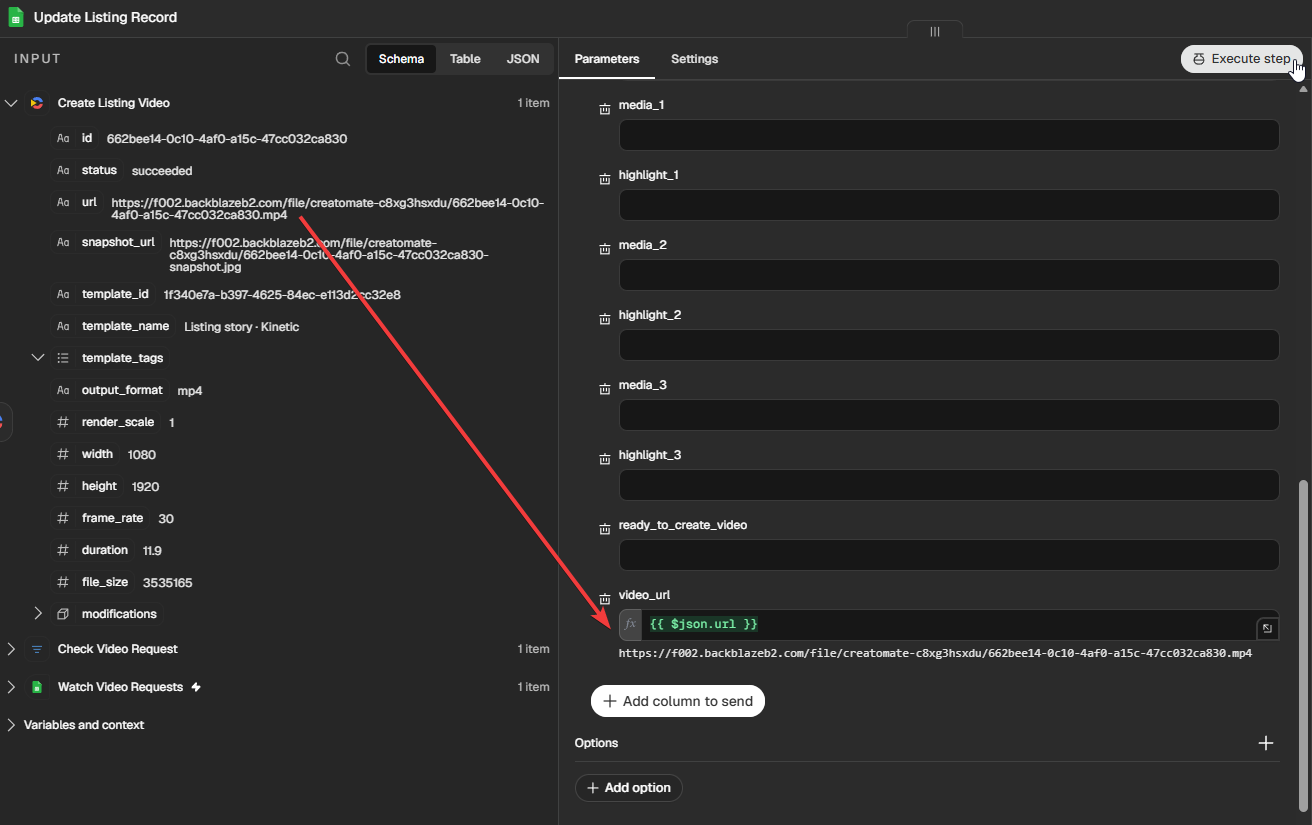
Click Execute step. The video_url cell in the listing-001 row should now be updated:

The next step tests the same workflow while it is active.
7. Activate and test the workflow
The manual tests confirmed that each node is configured correctly. Now test the complete workflow as it will run in practice. This creates one additional test render.
Use the listing-001 test row:
- Clear
ready_to_create_videoandvideo_url. - Save and publish the n8n workflow.
- Wait just over one minute, so n8n can register the row with an empty video request field.
- Enter
YESinready_to_create_video. - At the next poll, n8n should create one new render.
- Confirm that the same row receives the final URL in
video_url. - Open the video URL and check every property detail, image, highlight, and fixed brand element.
For future listings, add the row with ready_to_create_video left blank. Once n8n has registered it, change the field to YES when the listing is complete and you want to create its video.
What's next for real estate video automation
You now have a workflow that turns a listing marked ready into a finished vertical video. Creatomate keeps the design, branding, and fixed call to action consistent, while Google Sheets supplies the property details that change from listing to listing.
For each new property, add or update the listing data. Once n8n has registered the row, enter YES in ready_to_create_video when it is ready. The completed video URL is written back to the same row, ready to watch, download, share, or pass to another step in your automation.
Google Sheets is simply the example data source used in this tutorial. You can later replace it with your CRM, property-management system, database, or internal listing tool while keeping the same pattern: a stable listing ID, structured property data, a reusable Creatomate template, and a final check before anything is published.
Want to automate more of your video workflow? Check out one of these tutorials:
👉 Automatically add subtitles to videos with n8n
👉 Create AI voiceover videos with ElevenLabs and n8n
👉 Automatically create and upload YouTube Shorts with n8n
👉 Auto-create dynamic videos from images using n8n
👉 Create AI-generated Shorts with GPT Image and n8n
👉 Auto-generate faceless Shorts with ChatGPT and n8n
Related articles


Start automating today
Start with a full-featured trial with 50 credits, no credit card required.
Get started for free →