Setting up the MCP integration
Connecting your AI assistant to your Creatomate account gives it direct access, so it can take on more of the work: browse your templates, draft new ones and refine existing ones, and look up your renders to see how they came out. You sign in once, and your API key is never handed over.
This is made possible by the Model Context Protocol (MCP), the open standard AI applications use to connect to external tools. Creatomate provides a hosted MCP server, so there is nothing to install or run yourself. All you need is a URL.
Which URL to use
A connection reaches exactly one project. There are two ways to say which.
If you're connecting for the first time, use this URL. You'll be asked which project to connect while signing in.
It's also possible to specify the project ID in the URL itself. You need this when you want more than one project connected at once: some applications, Claude among them, allow only one connection per URL, so two projects need two different URLs.
Your project's ID is in the address bar while you're working in it: https://creatomate.com/projects/YOUR-PROJECT-ID/templates. Copy that ID into the URL above.
Claude
In claude.ai or the Claude desktop app:
- Open Settings → Connectors.
- Click Add, then Add custom connector.
- Give it a name and paste the URL. Name it after the project, for example "Marketing".
- Click Add, then Connect, and sign in.
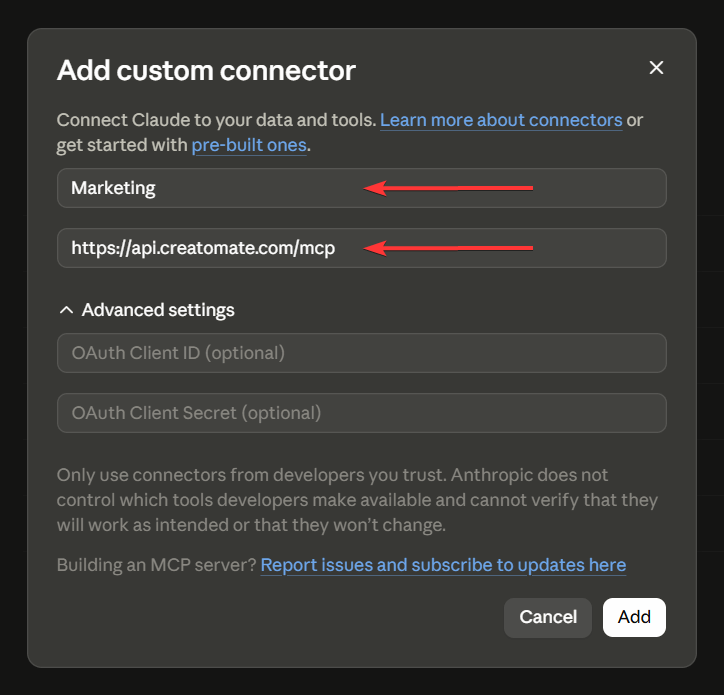
Claude asks for permission the first time it uses each tool. Choose Always allow for the ones you're happy to let it use without asking.
ChatGPT
Developer mode and the connector list live in two different places, which is the most common reason people can't find this.
- Open Settings → Security and login and turn on Developer mode.
- Go to Plugins in the left sidebar, or chatgpt.com/plugins.
- Click the + button next to the search box, top right.
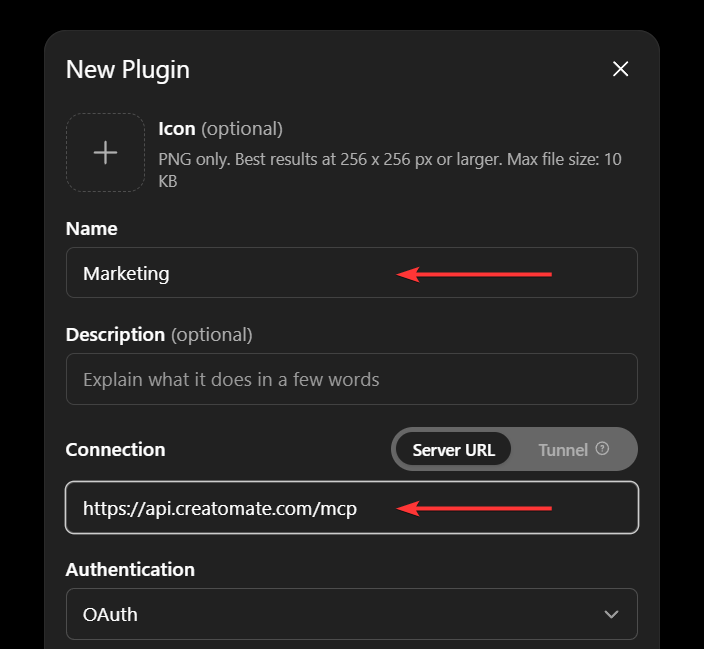
- Fill in a name, paste the URL under Connection, and leave Authentication on OAuth.
- Tick I understand and want to continue to enable Create.
- Click Create, then sign in.
Codex
Codex uses the connections from your ChatGPT account, so follow the ChatGPT steps above. The connector then appears in the Codex desktop app on its own.
If you run Codex from the command line, you can add it there instead:
$ codex mcp add creatomate --url https://api.creatomate.com/mcp
$ codex mcp login creatomate
Claude Code
Claude Code uses the connections from your Claude account, so follow the Claude steps above. The connector then appears in the Claude Code desktop app on its own.
If you run Claude Code from the command line, you can add it there instead:
$ claude mcp add creatomate --transport http https://api.creatomate.com/mcp
Cursor
Add Creatomate to ~/.cursor/mcp.json:
1{
2  "mcpServers": {
3    "creatomate": {
4      "url": "https://api.creatomate.com/mcp"
5    }
6  }
7}
VS Code (GitHub Copilot)
Add Creatomate to .vscode/mcp.json in your workspace:
1{
2  "servers": {
3    "creatomate": {
4      "type": "http",
5      "url": "https://api.creatomate.com/mcp"
6    }
7  }
8}
Other MCP clients
Any application that supports MCP over Streamable HTTP can connect using the same URL. Look for "Remote MCP", "HTTP" or "Streamable HTTP" in your client's MCP settings.
For servers, CI, or other headless setups where signing in isn't practical, the endpoint also accepts your project API key as a bearer token instead.
Renders cost credits
Your assistant can start renders, and those spend credits from your plan just as API renders do. It can do that without you typing a command, so it's worth knowing before you connect.
Two things keep the cost down while you're experimenting. Ask for a dry run to validate a render and see the result of your modifications without rendering anything, which is free. And ask for half scale while iterating, which renders at a quarter of the credits; go full size once you're happy with it.
Managing your connections
Your connections are listed under Account Settings → MCP Connections, showing which application is connected, which project it reaches, and when it was last used. Disconnect cuts off access immediately.
To connect a different project, add a second connection using that project's URL. To switch a connection from one project to another, disconnect it and connect again.
What your assistant can do
Once connected, your assistant has access to these tools:
get_guide: fetch the full Creatomate guide, which is how it learns RenderScript and avoids inventing property nameslist_templates: browse the templates in your projectget_template: read a template's full sourcecreate_template: create a new templateupdate_template: modify an existing templatedelete_template: delete a templatecreate_render: start a render, either from a template or from raw sourceget_render: check a render's status and result
Example prompts
Some things you can ask once your account is connected:
- "Show me the templates in my project and what they're for."
- "Create a 9:16 template for real estate reels: four photo slots, an address caption, and my logo at the end."
- "Change the intro text of my 'Product Promo' template and render a test video."
- "Look up my most recent failed render and fix whatever caused it."
- "Duplicate my 'Weekly Update' template and translate all texts to German."
The same prompt won't always produce the same video. If you need something specific, say so explicitly rather than leaving it open to interpretation.
Troubleshooting
- Nothing happens when you click connect. The sign-in step opens a popup window, so a popup blocker will stop it silently. Allow popups for the site and try again.
- The connector option is missing. In ChatGPT, the + button only appears once developer mode is on. In Claude, custom connectors aren't available on every plan.
- Your assistant says a tool doesn't exist. Applications cache the tool list from when you connected, so a tool added since then won't show up. In ChatGPT, open the connector and use Manage → Refresh; in Claude, use ⋮ → Refresh tools list.
- It used the wrong project. With more than one connection, ask for the project by name, or name each connector after its project so it can tell them apart.
- The assistant can't find a template. It only sees the project it was connected to. Connect the other project as well, using that project's URL.
- Something else? Get in touch at [email protected], we're happy to help.