How to Auto-Caption New Google Drive Videos with n8n

Use n8n and Creatomate to add animated, burned-in subtitles to new Google Drive videos and save the finished MP4 to another folder.
If you regularly collect podcast clips, talking-head videos, product demos, or other spoken videos in Google Drive, downloading each file, captioning it, and uploading it again creates unnecessary manual work. This workflow gives each new video the same subtitle treatment as soon as it reaches an input folder.
The result is a new video with animated subtitles burned into the picture. It is not a Google Drive caption track, and it does not create a separate SRT or VTT file. Because the subtitles are part of the MP4, their font, colours, position, and animation stay visible wherever you share the file.
Video courtesy of Ryan Holiday of The Daily Stoic podcast.
You can make the subtitle design your own before the workflow starts. Choose the font, colours, position, words per caption, highlighting, and animation in a Creatomate template; every future video then uses that same style automatically.
Prerequisites
You need:
- A Creatomate account.
- An n8n workspace.
- A Google account with access to Google Drive.
You do not need to have a video ready before starting. This tutorial includes a downloadable demo video, so you can build and test the complete workflow before replacing it with your own videos. When you use the workflow in production, choose videos with clear, audible speech for the most reliable transcription.
How the Google Drive subtitle workflow works
We'll begin by importing a subtitle template into Creatomate and creating separate input and output folders in Google Drive. Then, each new video added to the input folder starts the n8n workflow. n8n shares a downloadable link to that video, sends the link to Creatomate, and waits while Creatomate transcribes the speech and applies the template's subtitle design. Finally, n8n downloads the completed MP4 and uploads it to a separate Google Drive output folder.

Let's get started.
1. Import the subtitle template
Start by importing the Highlighted Subtitles template by clicking the banner below:

After importing it, the template opens as a copy in your project. Select the Video element. In the Properties panel, its Source is marked as dynamic. That lets n8n replace the placeholder footage with a new Google Drive video whenever the workflow runs.
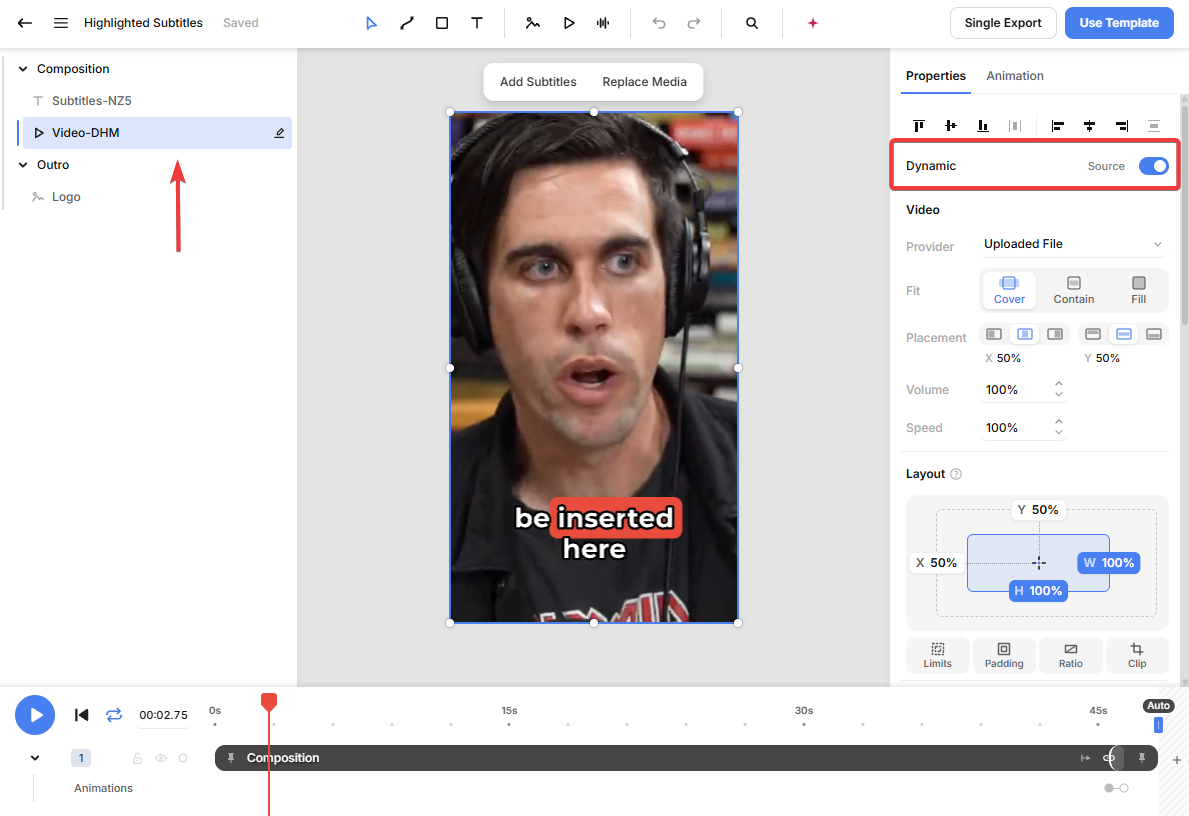
Creatomate gives the dynamic element a unique name, such as Video-DHM. Keep that name as it is: you will select the same field when you configure the Creatomate node in step 5.
The Subtitles element is already connected to the video element as its transcription source. The words visible in the editor are only placeholders; when the video renders, Creatomate transcribes the speech from the new video and generates the animated subtitles automatically.
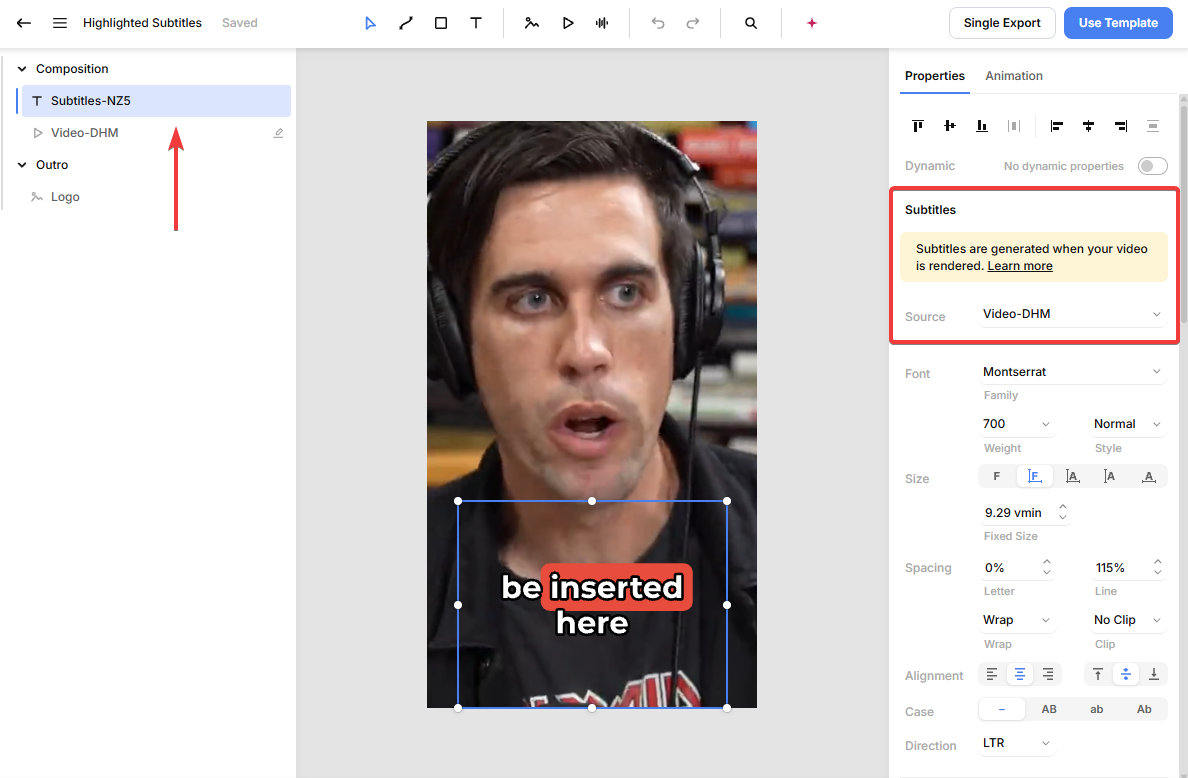
The template is ready to use, but you can customise its font, colours, position, word highlighting, and animation at any time. Keep Video-DHM dynamic so n8n can replace the placeholder footage with each new Google Drive video.
To keep this tutorial focused on the Google Drive workflow, we'll use the template as is. For a step-by-step guide to styling subtitles, see How to Automatically Add Subtitles to Videos with n8n. Want a different visual starting point? Browse Subtitled clips in Creatomate's template gallery. If you choose another template, make sure its video element is dynamic, then map that element's name - instead of Video-DHM - in step 5.
2. Create the Google Drive folders
In Google Drive, create a folder named Subtitle Automation. Inside it, create two subfolders:
- Videos to Subtitle for the original videos that should start the workflow.
- Subtitled Videos for the completed MP4s.
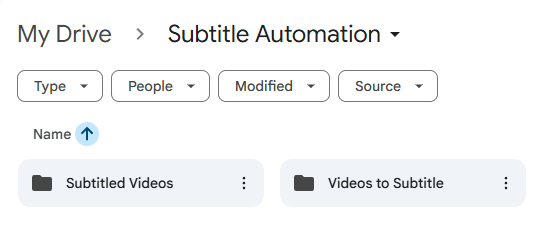
Keeping the folders separate matters. If the workflow saved its output to the watched folder, it could pick up the new MP4 as another input video and create a loop.
For a first test, download the sample video. It is the demo file used in this tutorial, so you can follow every step without supplying a video of your own. Upload it to Videos to Subtitle now. In the next step, you will use it to fetch a test event and see the data that each node receives.
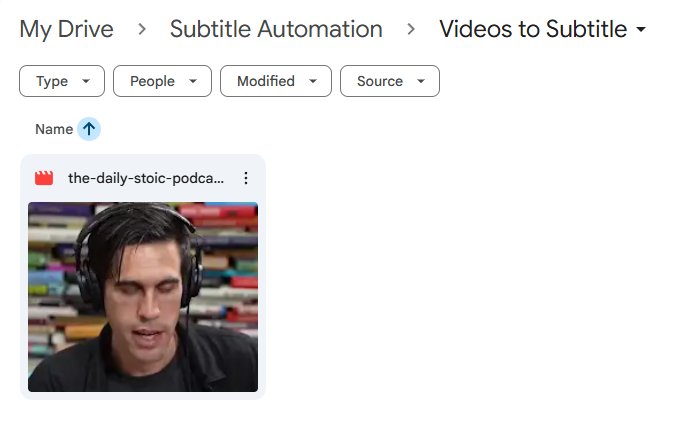
Note: Only upload video files to Videos to Subtitle. The trigger watches every newly created file in that folder, so a non-video file would also start the workflow.
3. Add the Google Drive trigger
Create a new n8n workflow. Add a Google Drive node. Under Triggers, choose On changes involving a specific folder, then rename the node New video in input folder.
Connect your Google Drive credential, then configure the node as follows:
- Poll Times: Every Minute
- Trigger On: Changes Involving a Specific Folder
- Folder: Videos to Subtitle
- Watch For: File Created
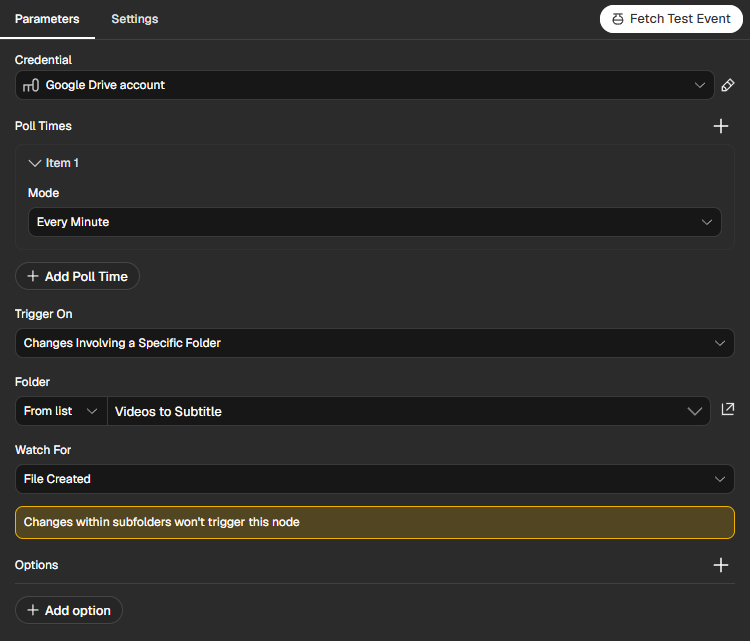
This trigger starts the workflow for files that are newly created directly in the selected input folder. It does not watch subfolders, so upload videos directly to Videos to Subtitle. Because the workflow does not filter by file type, keep non-video files out of this folder. It is not a one-time batch processor for every file already in that folder.
Click Fetch Test Event. n8n loads the demo video from step 2 as test data. The nodes you add next use this data, so you can execute and check each step before activating the complete workflow.
4. Share the input video by link
Creatomate needs to download the original video to render the subtitled MP4. Add a Google Drive node after the trigger. Under Actions, choose Share file, then rename the node Share the video by link.
Use the same Google Drive credential. Configure the node as follows:
- Resource: File
- Operation: Share
- Under File, change From list to By ID, then enter
{{ $('New video in input folder').item.json.id }}as an expression. - Under Permissions, click Add Permission and set the permission to Reader for Anyone
- Leave Allow File Discovery turned off.
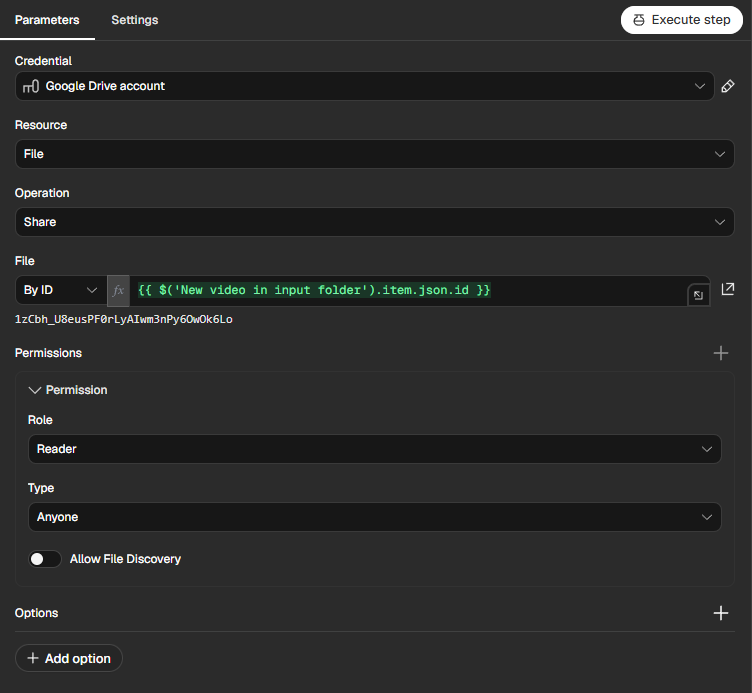
The file ID expression tells n8n to share the exact file that started the workflow. The trigger provides the video's webContentLink; this sharing step makes that download link accessible to Creatomate, so it can retrieve the original video while rendering.
Privacy note: The original video remains shared by link after this workflow runs. Use a folder that is appropriate for this access level, or remove link access manually after processing if you no longer need it.
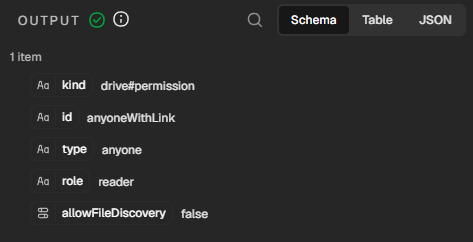
Click Execute step. The output should confirm a Reader permission for Anyone, with allowFileDiscovery set to false. Creatomate can now download the video through the shared link.
5. Add animated subtitles with Creatomate
Add a Creatomate node after Share the video by link. If n8n shows Install this node to use it, click Install node. When installation returns you to the canvas, reopen the node. Under Render actions, choose Create a render, then rename the node Add animated subtitles.
Connect Creatomate
Under Credential, select Connect to Creatomate.
In Creatomate, open the project menu, choose Project Settings, then copy the API key from the API Key section:
Paste it into n8n and save the credential.
Map the Google Drive video
Under Template, choose the imported Highlighted Subtitles template. Selecting the template loads its dynamic elements.
Set Mapping Column Mode to Map Each Column Manually. Under Values to Send, map the template's Video-DHM element to:
{{ $('New video in input folder').item.json.webContentLink }}
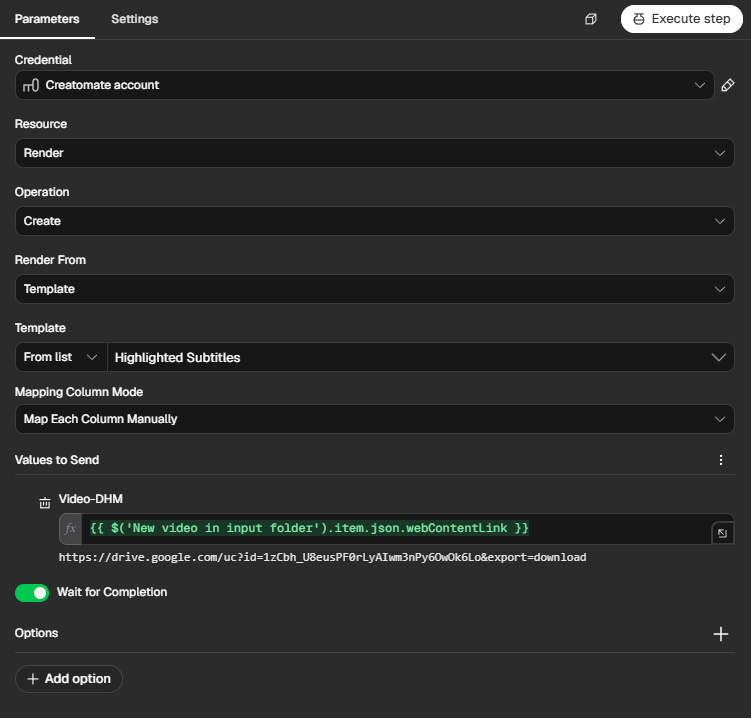
Keep Wait for Completion enabled. n8n then waits while Creatomate transcribes the speech and renders the finished MP4, rather than continuing before the video is ready.
Click Execute step to test the node. A successful result includes a public url for the completed subtitle video:
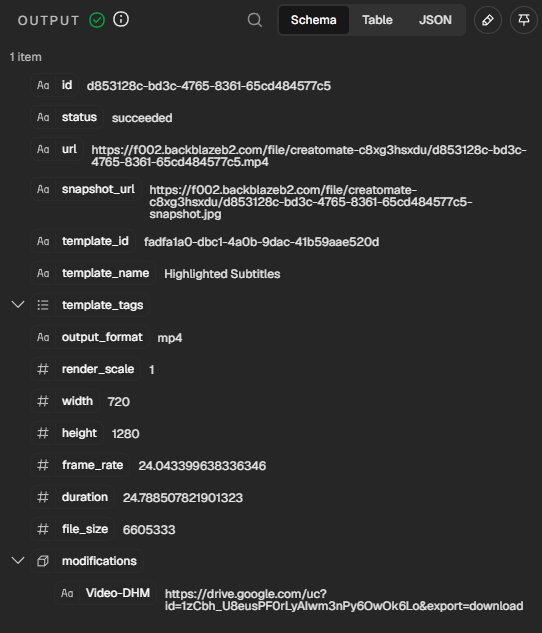
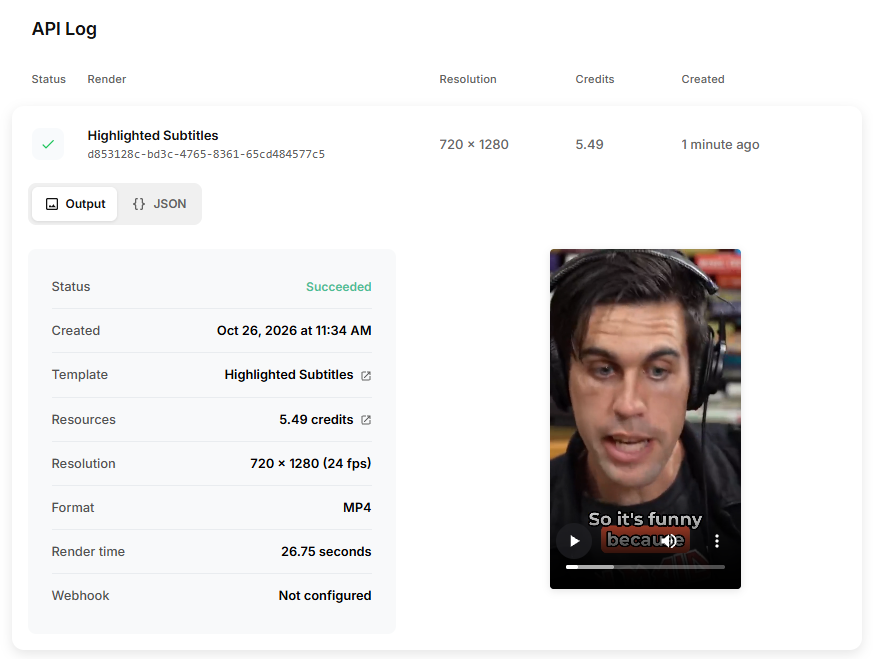
Every render is also recorded in Creatomate's API Log. Open it from your Creatomate project to check the status and processing details. If this test fails, the API Log is the best place to find the complete error before trying again.
6. Download and save the finished MP4
Once Creatomate has completed the render, n8n needs to download the MP4 as a file before it can upload it to Google Drive.
Download the MP4
Add an HTTP Request node after it, rename it Download the subtitled video, and configure it as follows:
- Method: GET
- URL:
{{ $('Add animated subtitles').item.json.url }} - Authentication: None
- Under Options, add Response
- Response Format: File
- Leave Put Output in Field set to
data
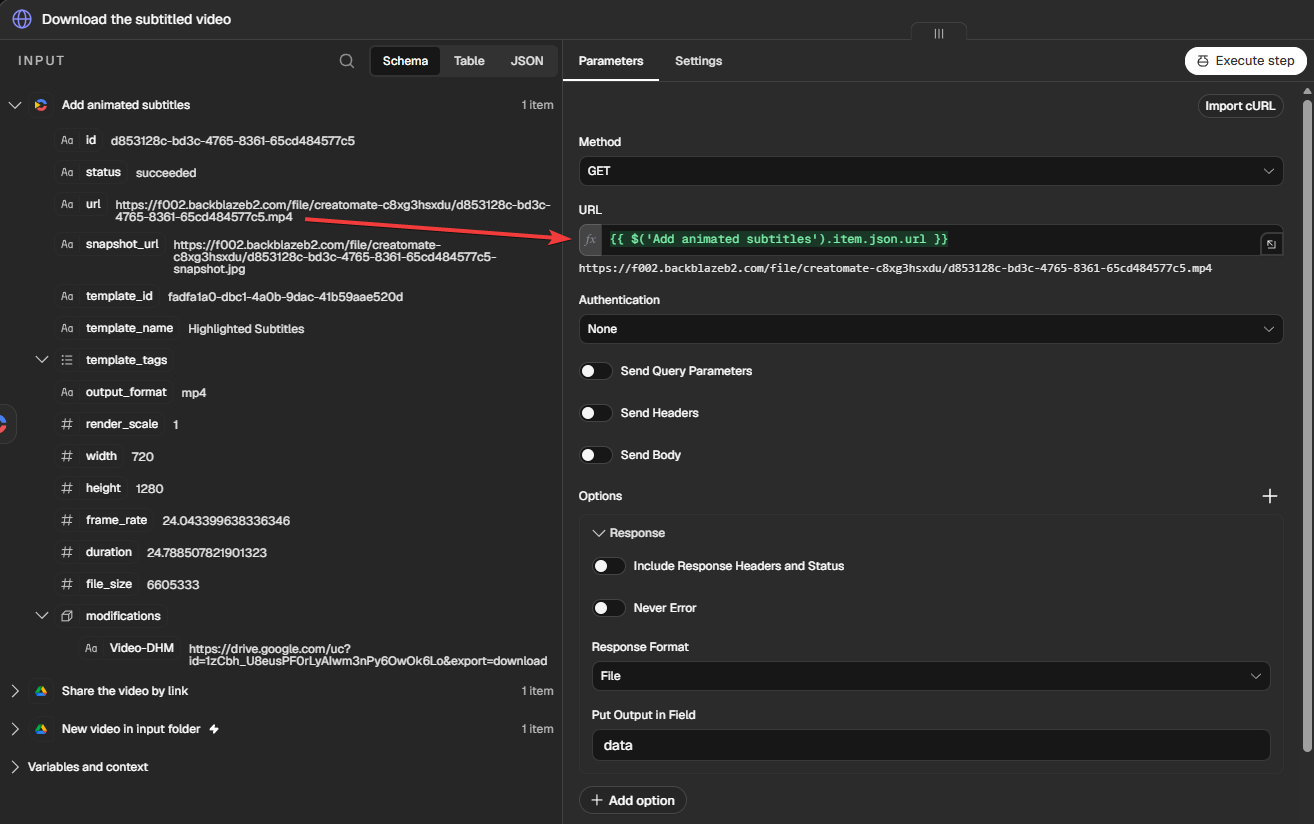
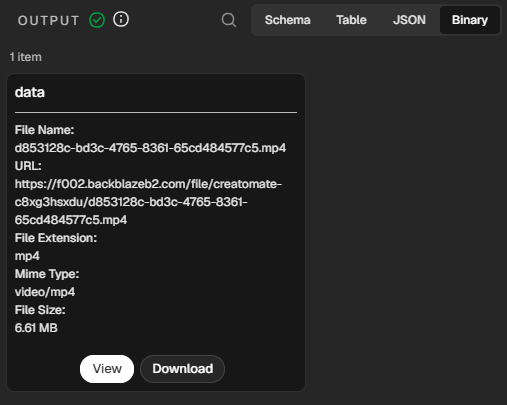
Click Execute step. The finished MP4 is now available to n8n as binary data:
Upload the MP4 to Google Drive
Add a final Google Drive node. Under Actions, choose Upload file, then rename the node Save to output folder. Use the same Drive credential and configure it as follows:
- Resource: File
- Operation: Upload
- Input Data Field Name:
data - Parent Drive: My Drive
- Parent Folder: Subtitled Videos
Set the file name to:
{{ $('New video in input folder').item.json.name.replace(/\.[^.]+$/, '') + '-subtitled.mp4' }}
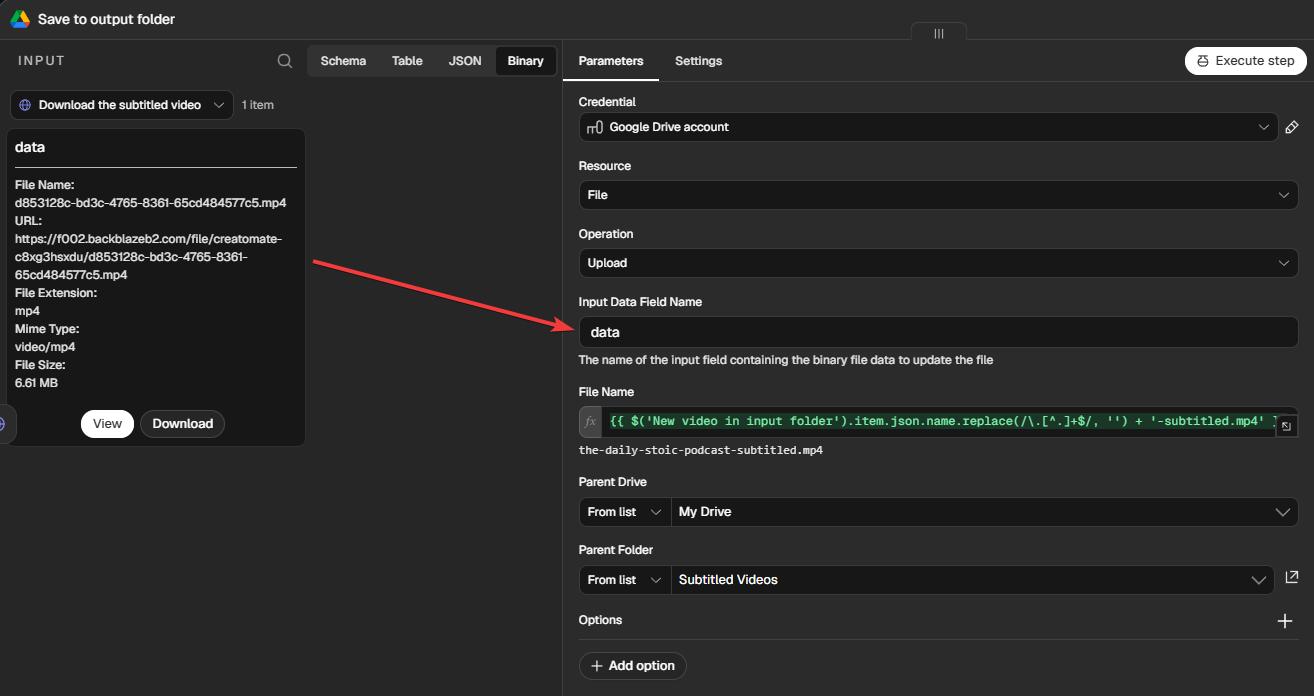
This keeps the original base name while adding -subtitled and ensures that the saved file is an MP4.
Click Execute step. The completed MP4 should now appear in Subtitled Videos. Open and play that file to confirm that the animated subtitles and their styling are visible in the video:
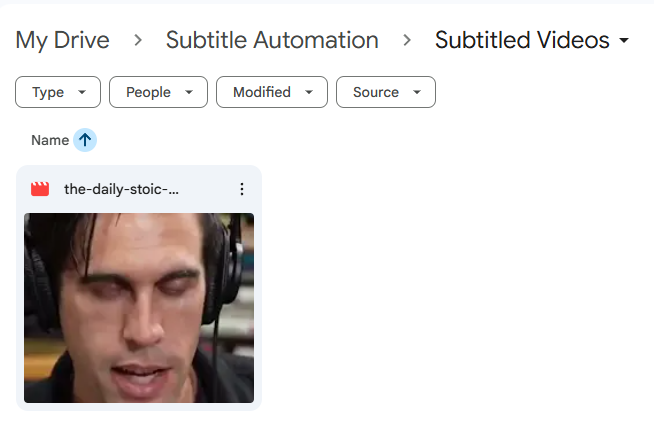
Your Google Drive subtitle automation is ready
Save and activate the workflow. From then on, every MP4 you add directly to Videos to Subtitle is shared by link, transcribed and rendered by Creatomate, then uploaded to Subtitled Videos as <original-name>-subtitled.mp4.
For a final check, upload a second copy of the demo video with a different file name. At the next polling interval, open the new MP4 in Subtitled Videos and play it to confirm that the animated subtitles look as expected.
Related articles
Start automating today
Start with a full-featured trial with 50 credits, no credit card required.
Get started for free →